Use it as a gamepad, as your PC's mouse and keyboard, as a screen for streams, or to send files across the room.
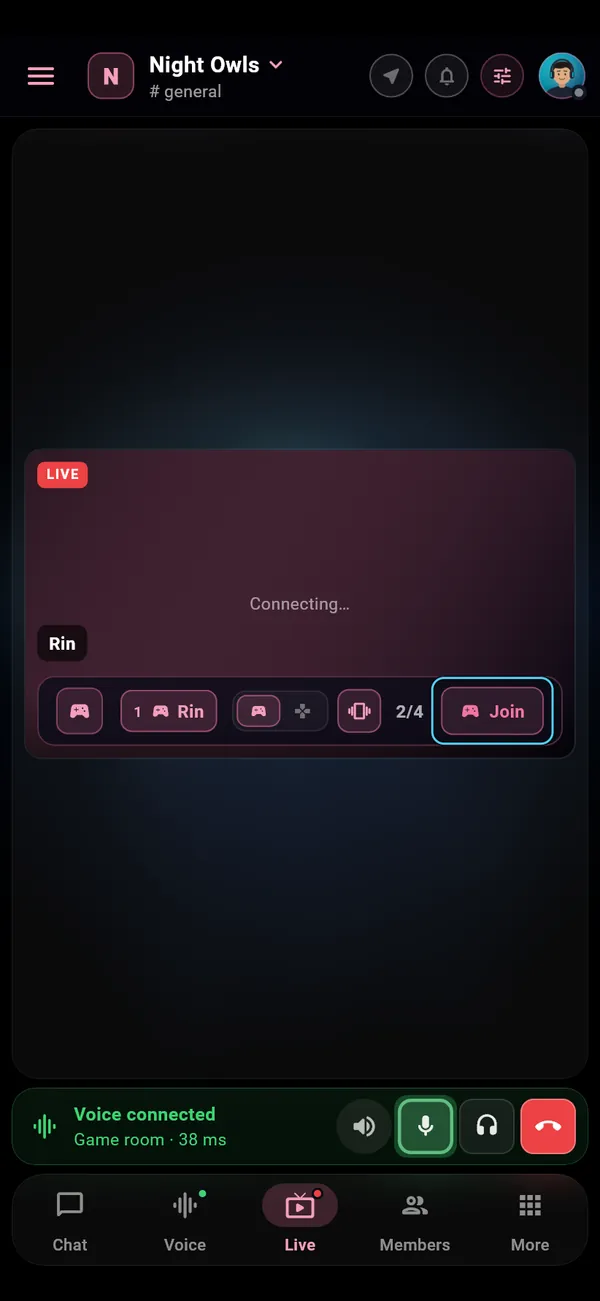
Use your phone as a gamepad in a PC game
Where to find it
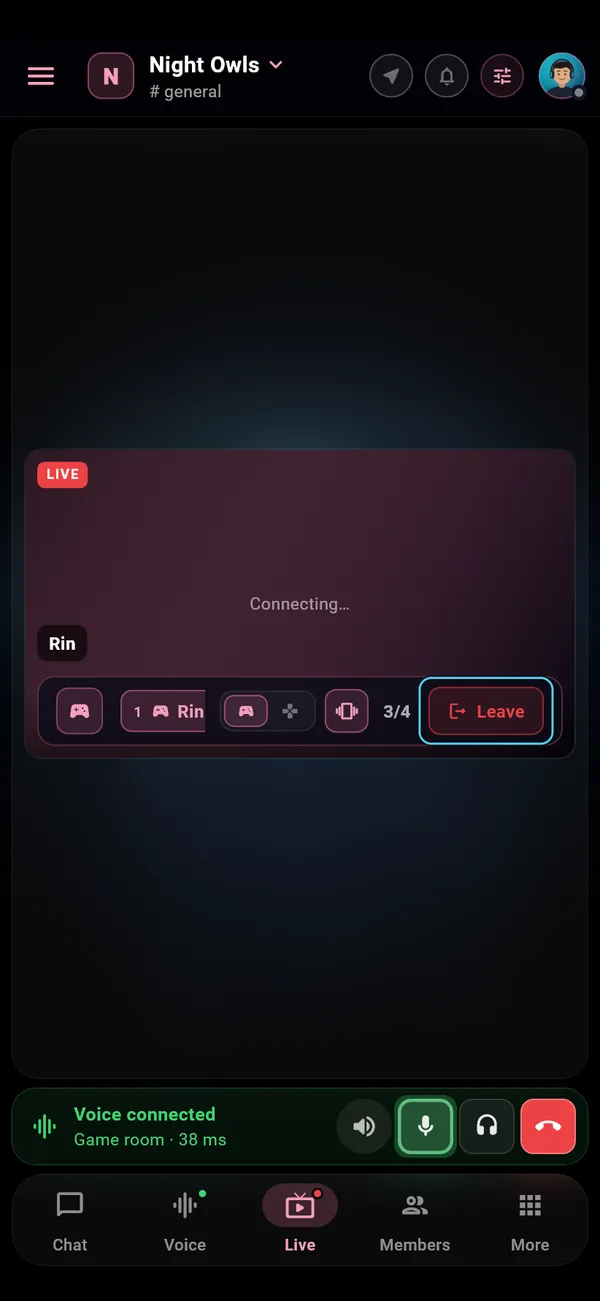
In a server: Live tab › the stream › game session bar › Join
How to use it
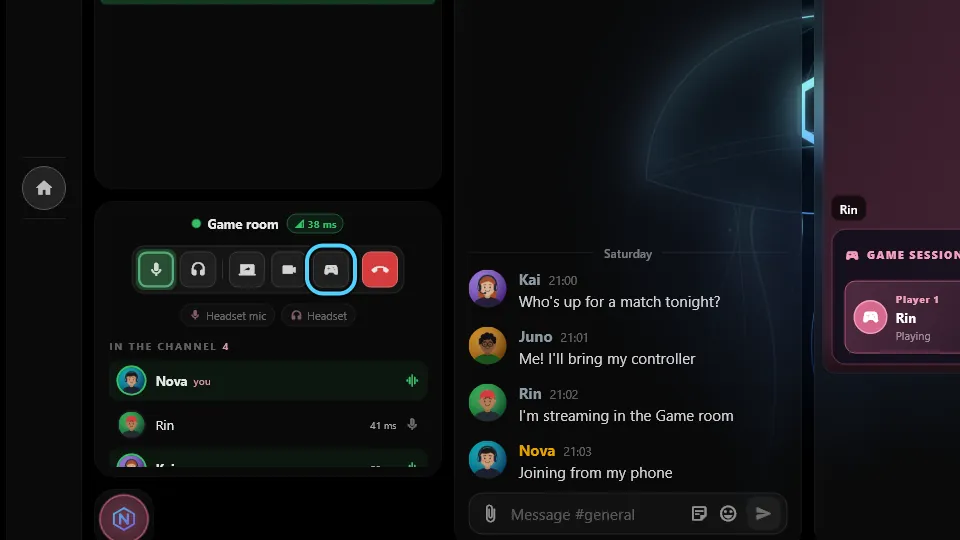
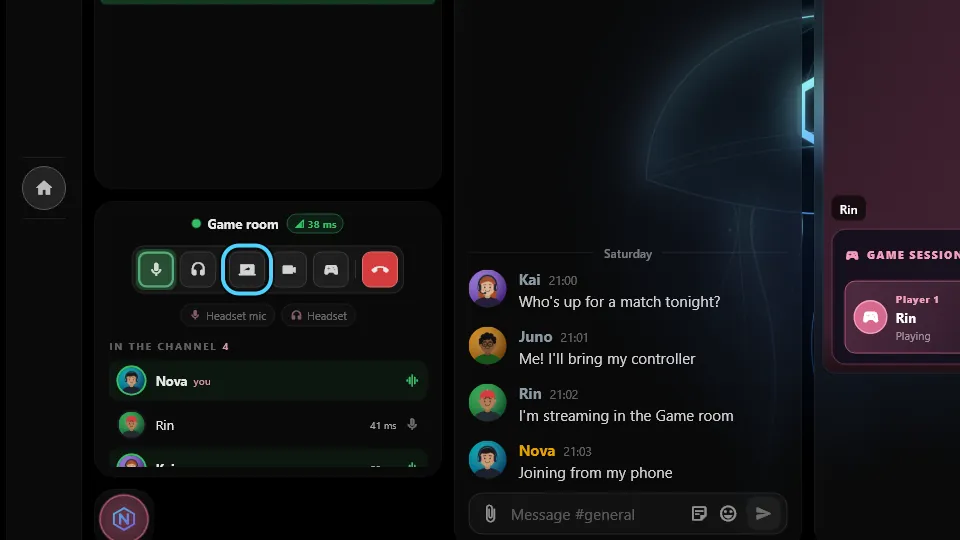
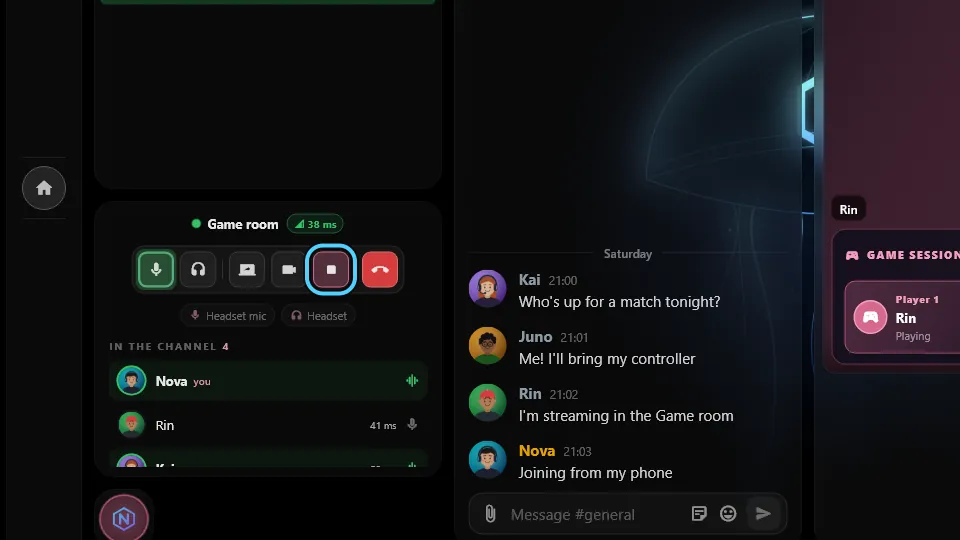
On the PC, whoever streams taps Play together in the voice panel. That starts the stream and opens a game session.
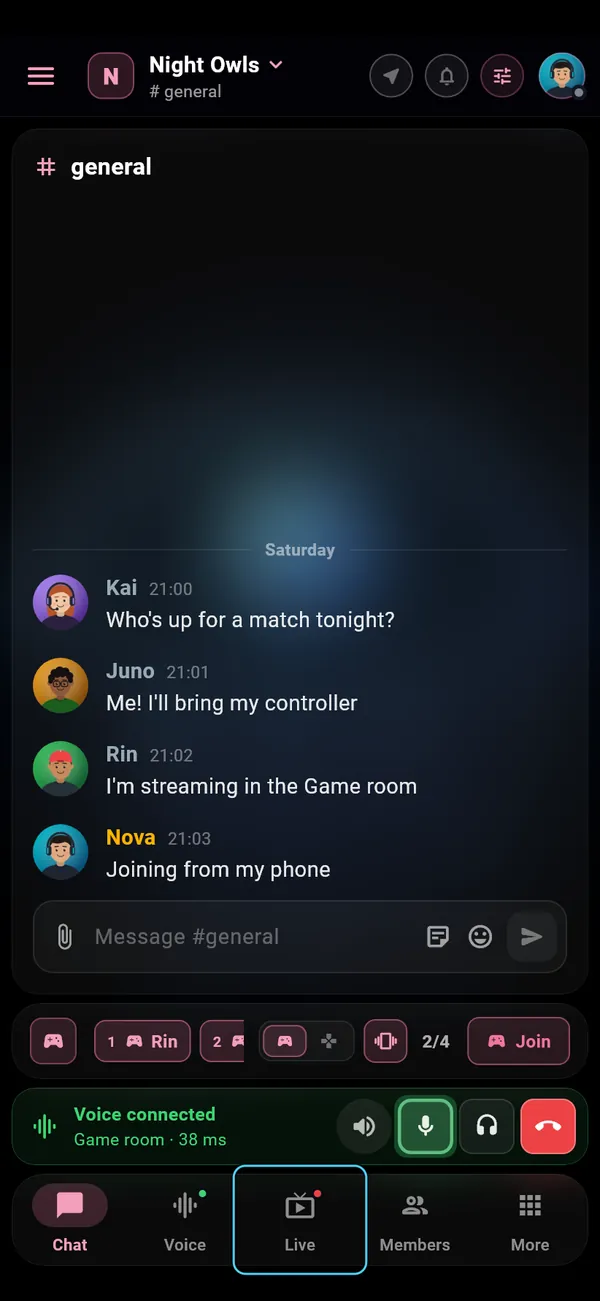
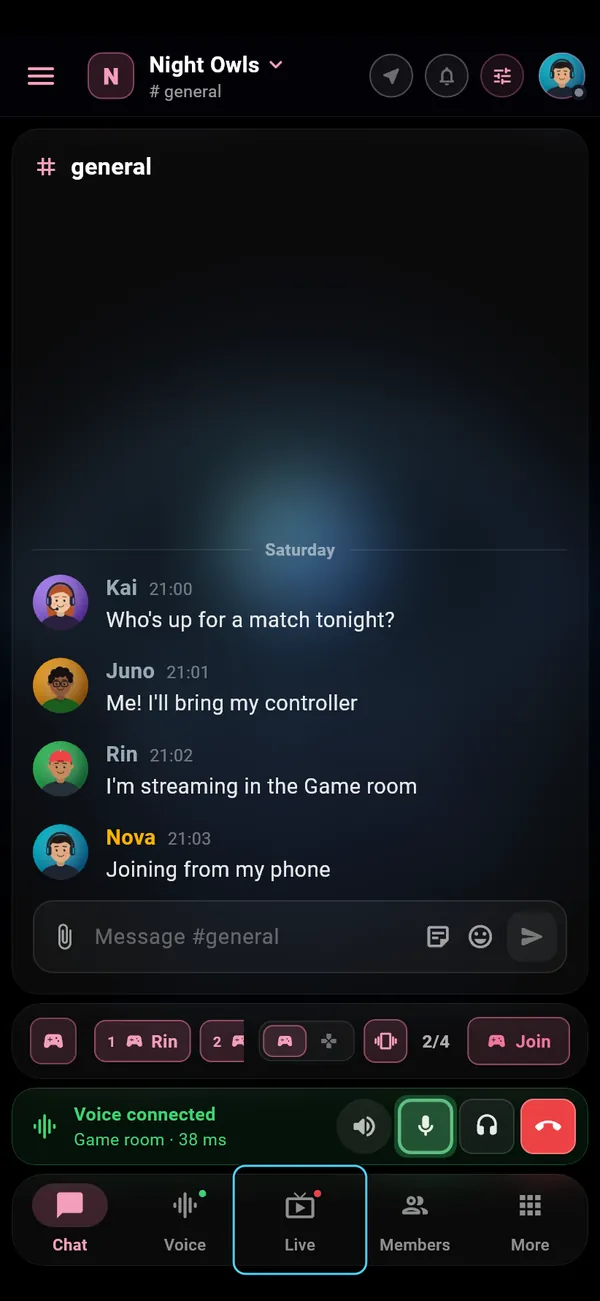
On your phone, open the server, go to the Live tab and open the stream.
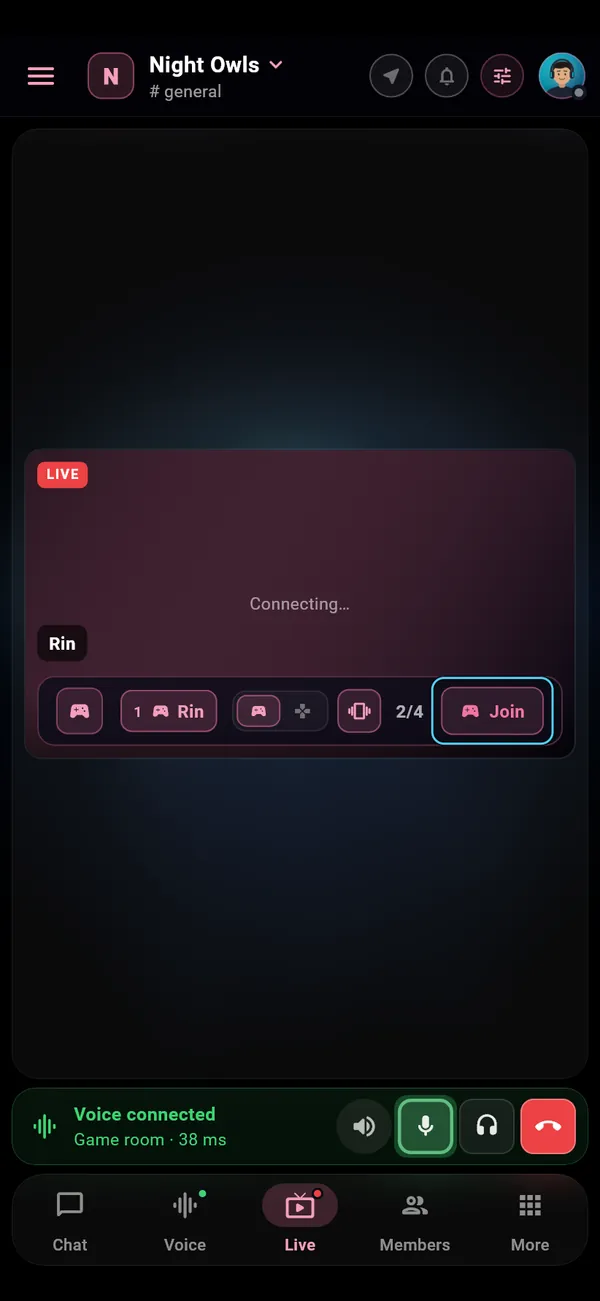
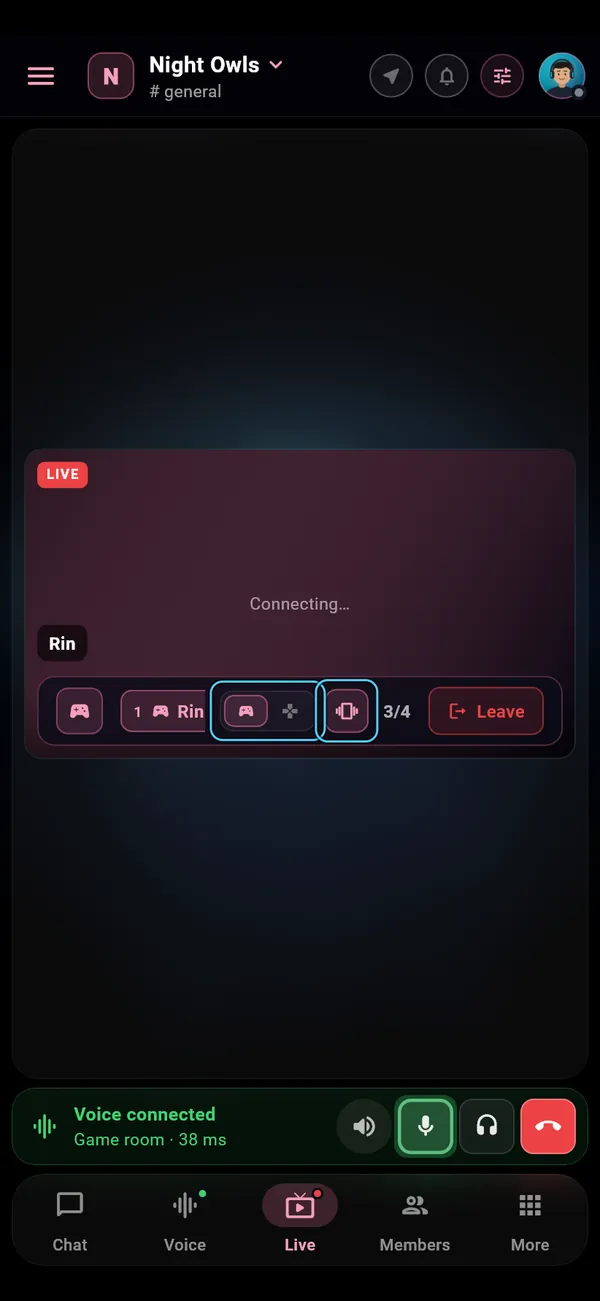
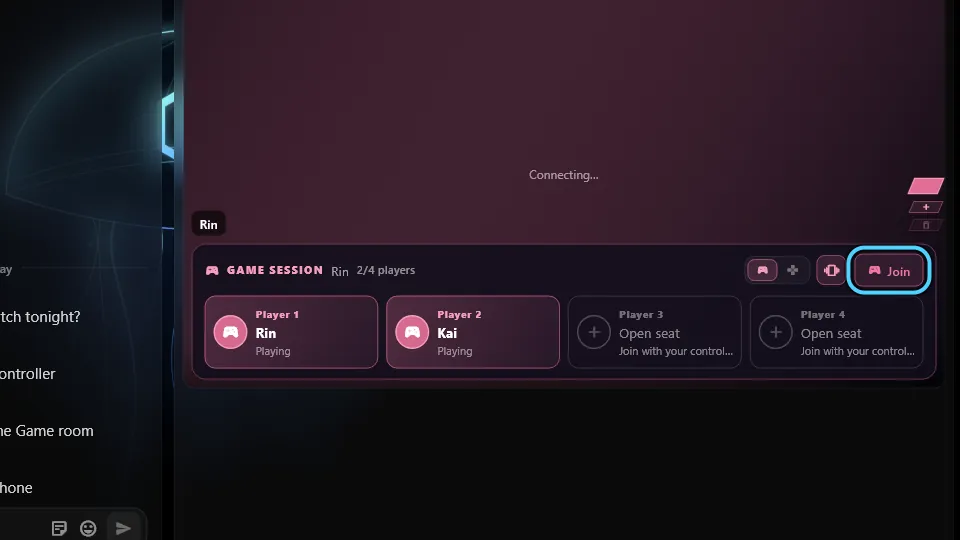
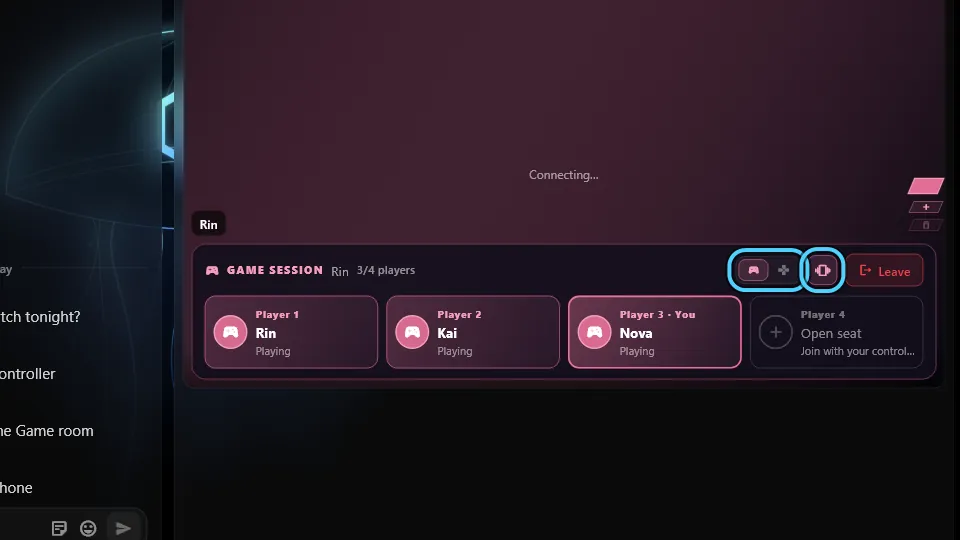
In the game session bar, tap Join. You get a free seat as Player N and the touch pad appears over the video.
Pick Xbox or PlayStation (the controller the game sees on the PC) and switch Vibration on or off. Vibration only changes this device.
Tap Leave to free your seat.
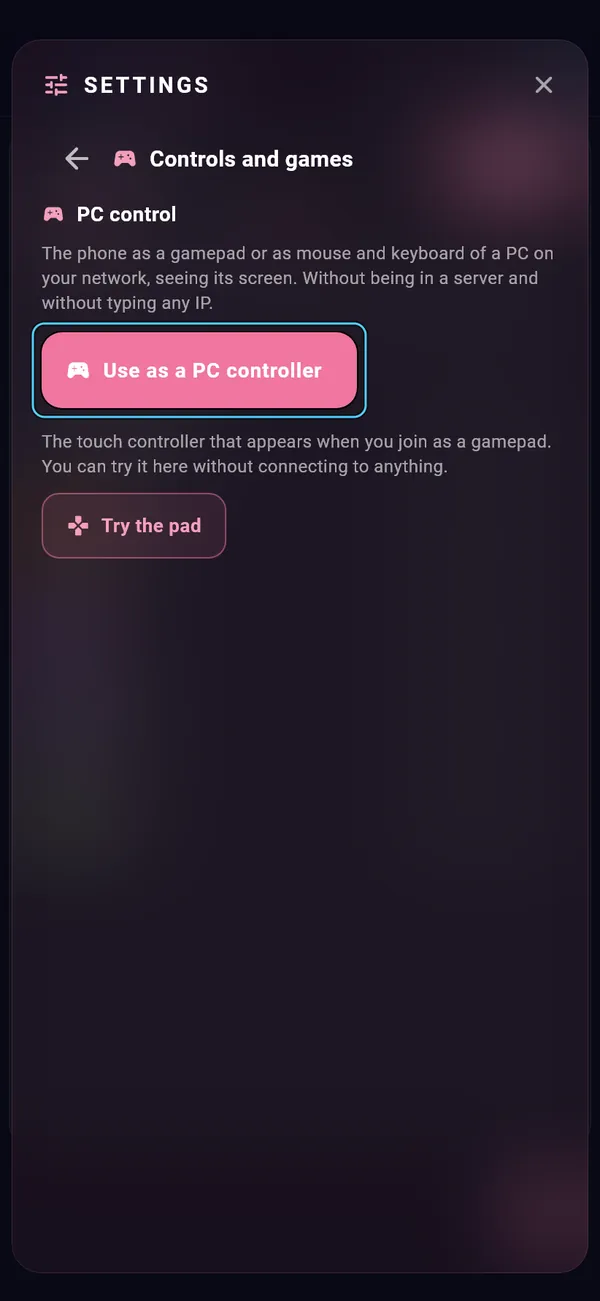
Want to see the pad first? Settings › Controls and games › PC control › Try the pad.
Control your PC from your phone
Where to find it
Settings › Controls and games › PC control › Use as a PC controller. Inside a server: More › This phone › Use as a controller.
How to use it
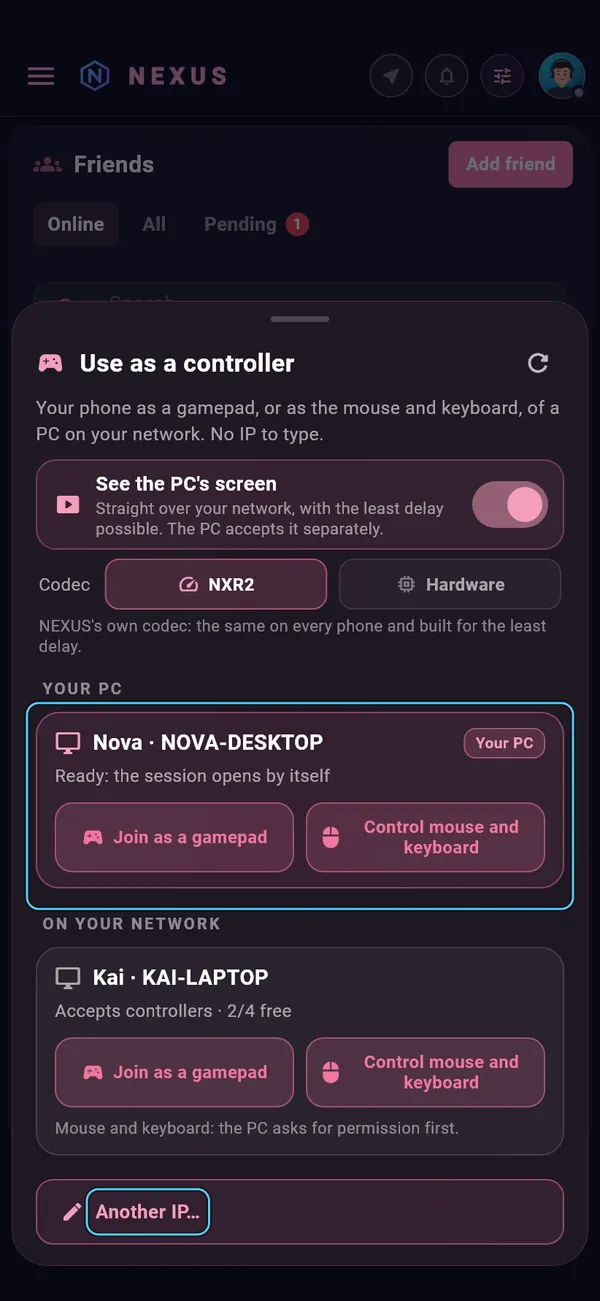
Open NEXUS on the PC and connect the phone to the same Wi-Fi. No server and no IP needed.
Your PCs on the network show up, yours first. For one that isn't listed, use Another IP…
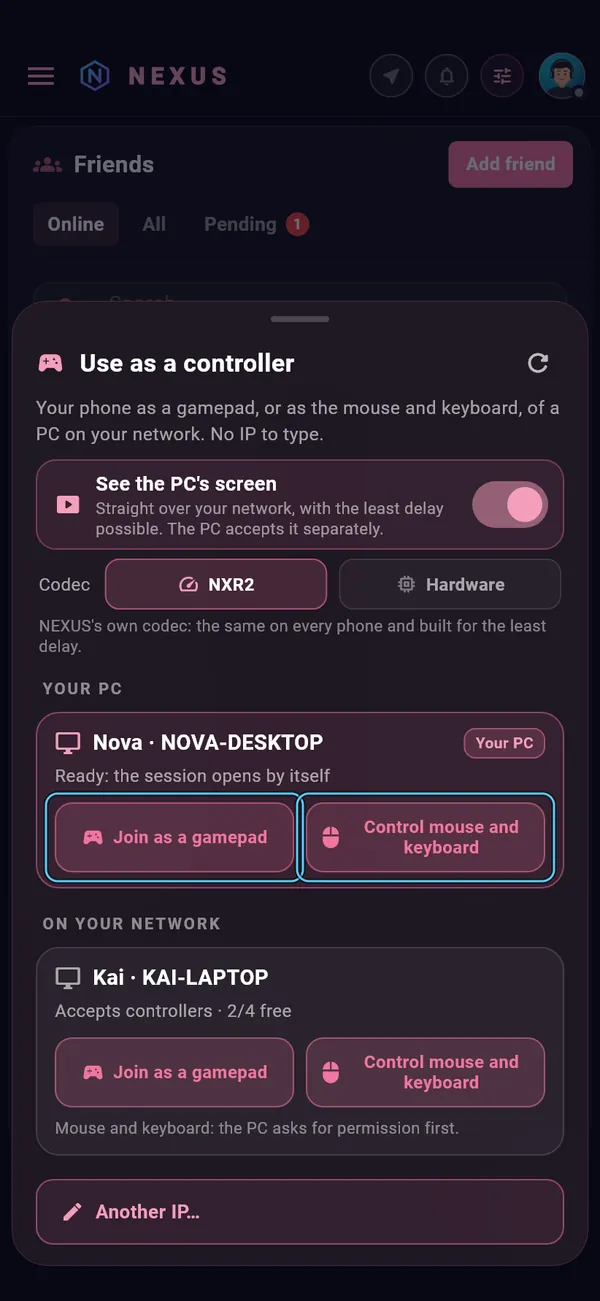
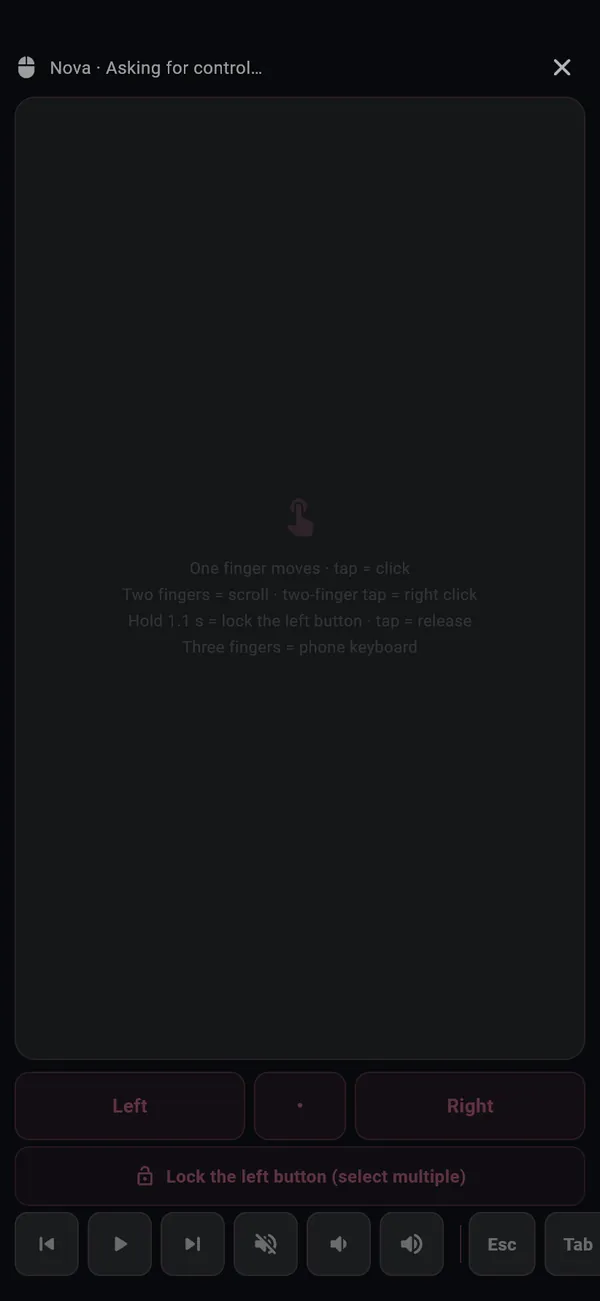
Choose Join as a gamepad (the PC sees one more Xbox controller; turn on See the PC's screen to see it behind the pad) or Control mouse and keyboard (one finger moves the pointer, tap = click).
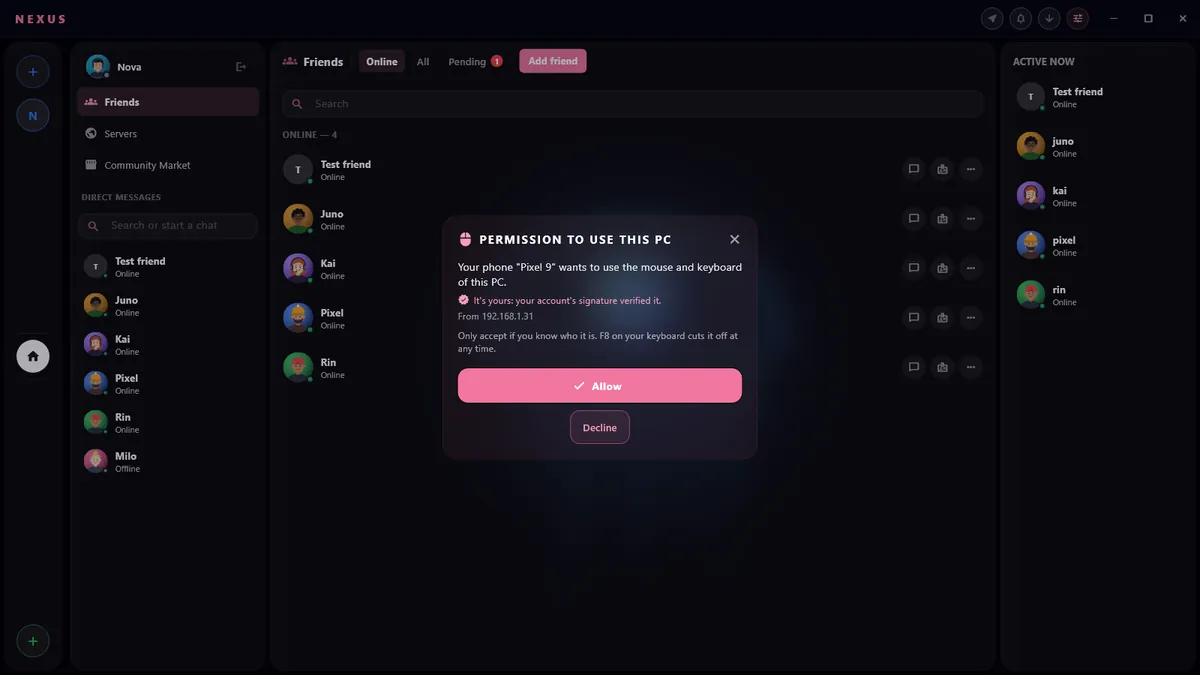
The PC asks for permission first. Phones on your own account are verified by your account's signature.
Press F8 on the PC's keyboard to cut control at any time.
Watch streams on your phone
Where to find it
In a server: the Live tab (it appears with a red dot when someone is streaming)
How to use it
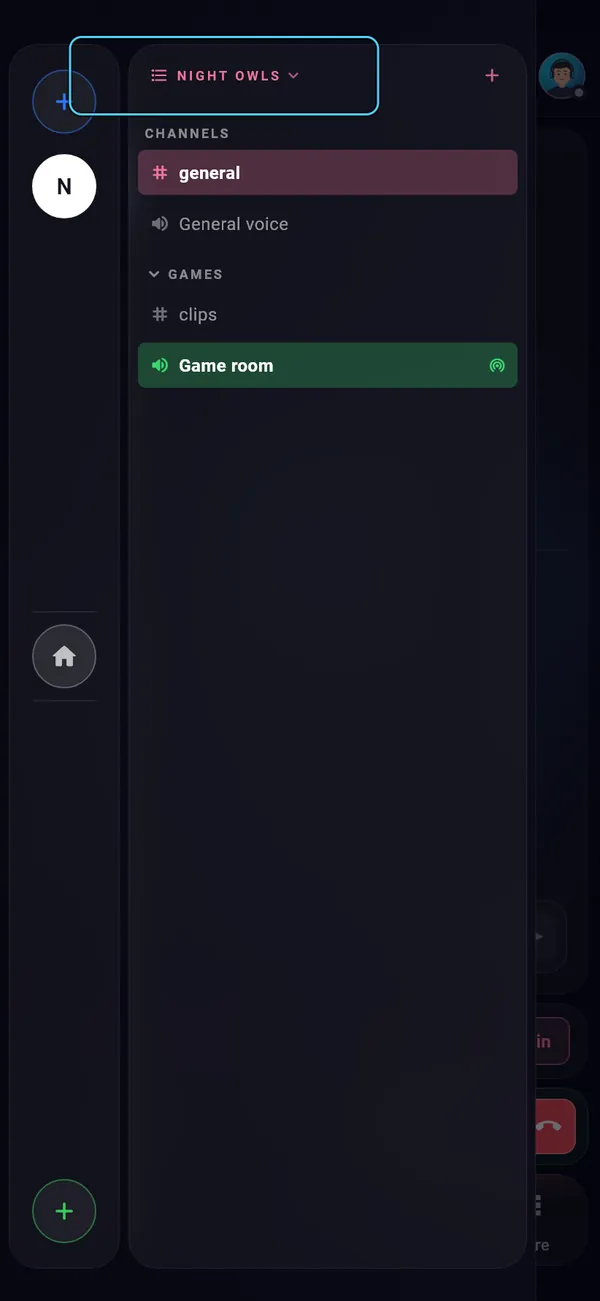
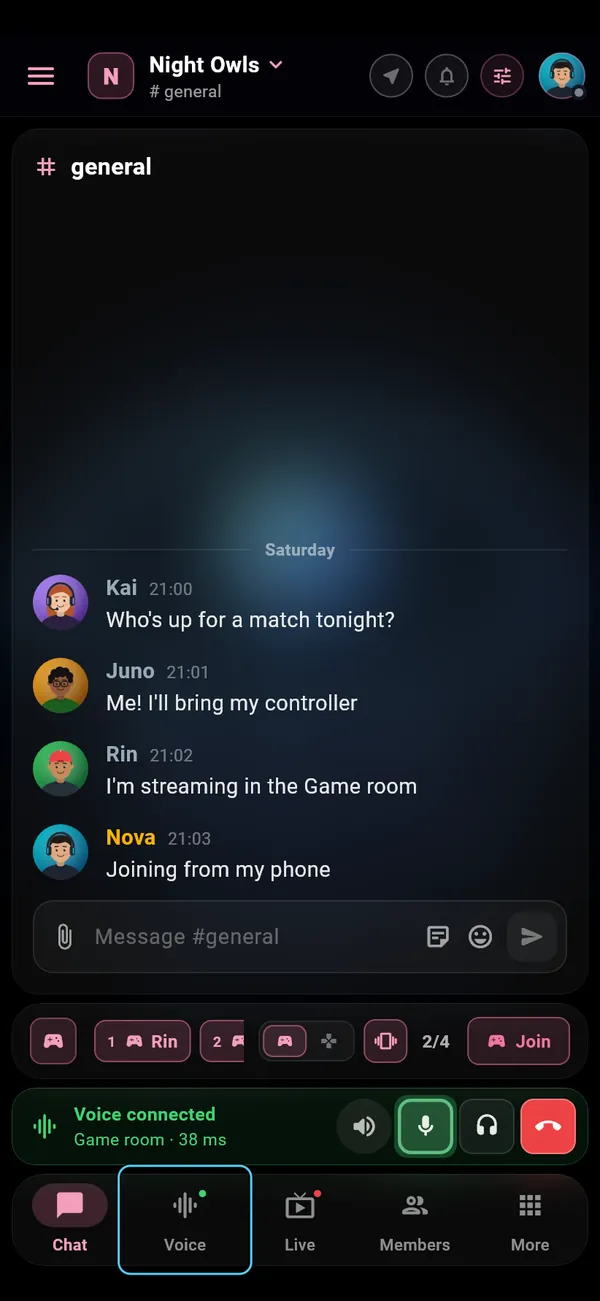
Open the server from the drawer (swipe from the left edge).
Tap Live and pick a stream.
If the streamer opened a game session, you can Join it from the same screen (see “Use your phone as a gamepad”).
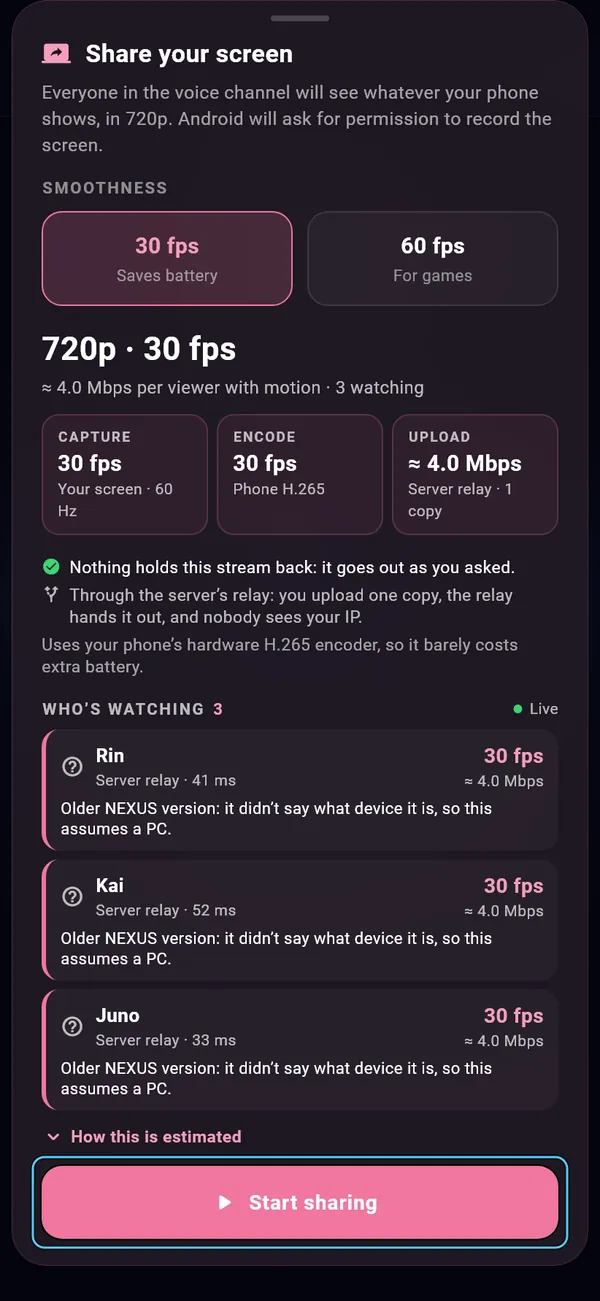
Stream your phone's screen
Where to find it
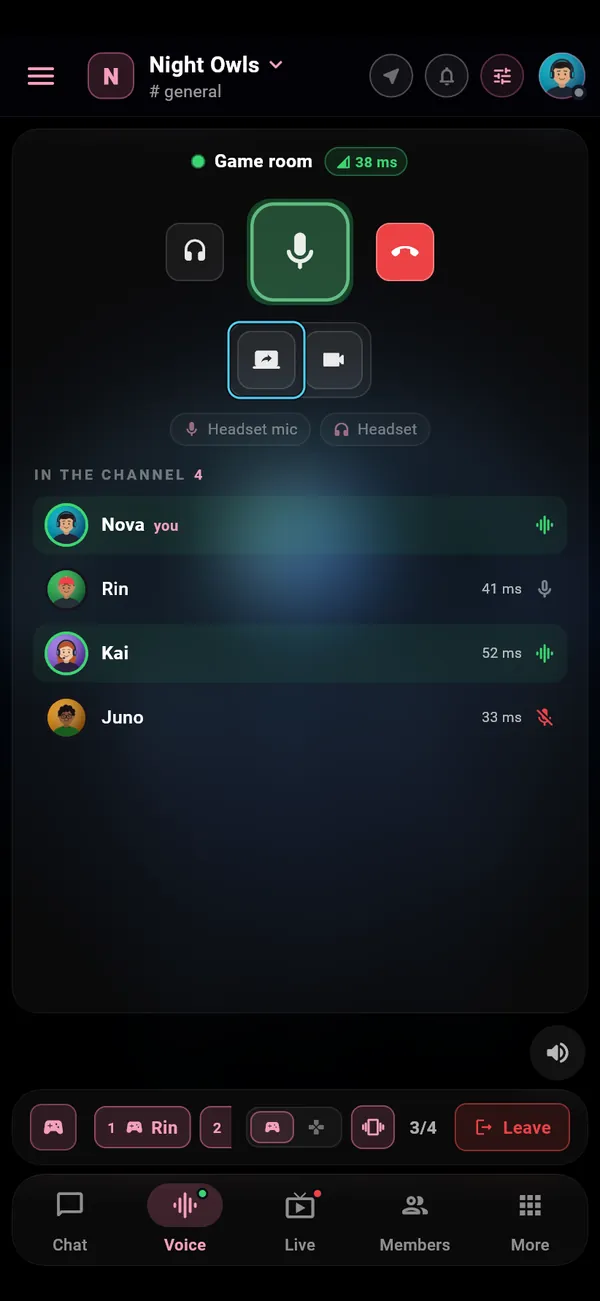
In a voice channel: Voice tab › Share screen
How to use it
Join a voice channel and open the Voice tab.
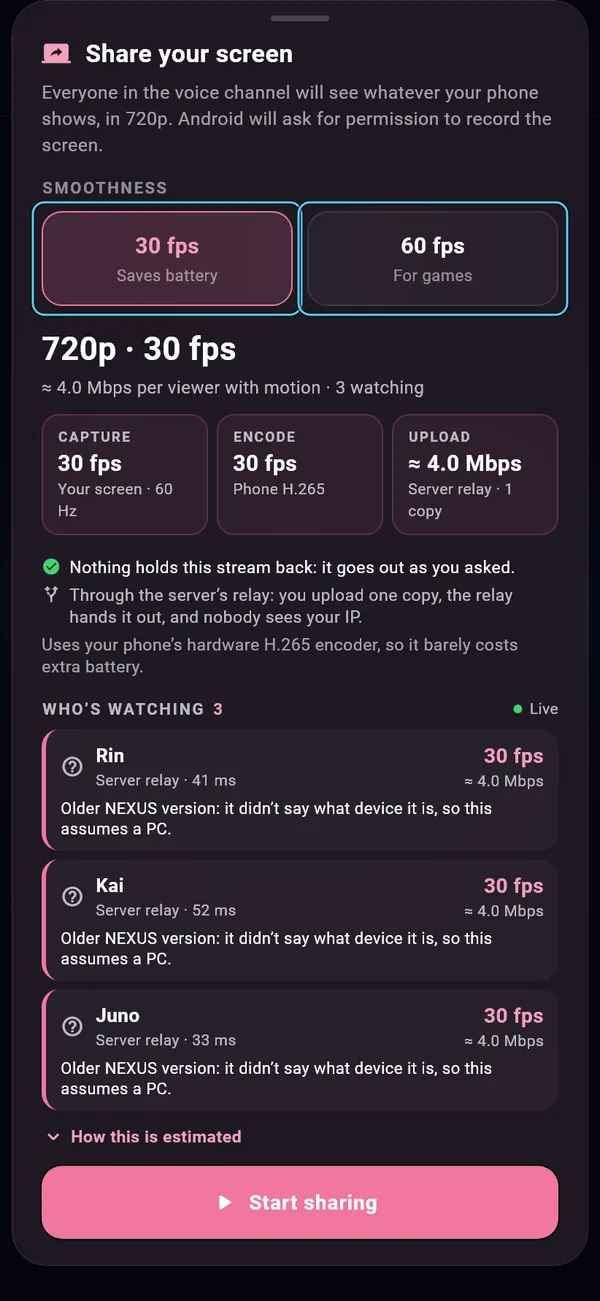
Tap Share screen.
Pick the smoothness: Saves battery or For games.
Tap Start sharing and allow Android to record the screen.
People watch from a PC or a phone. Over the internet it goes through the server's relay, so nobody sees your IP. The phone needs a hardware H.265 video encoder.
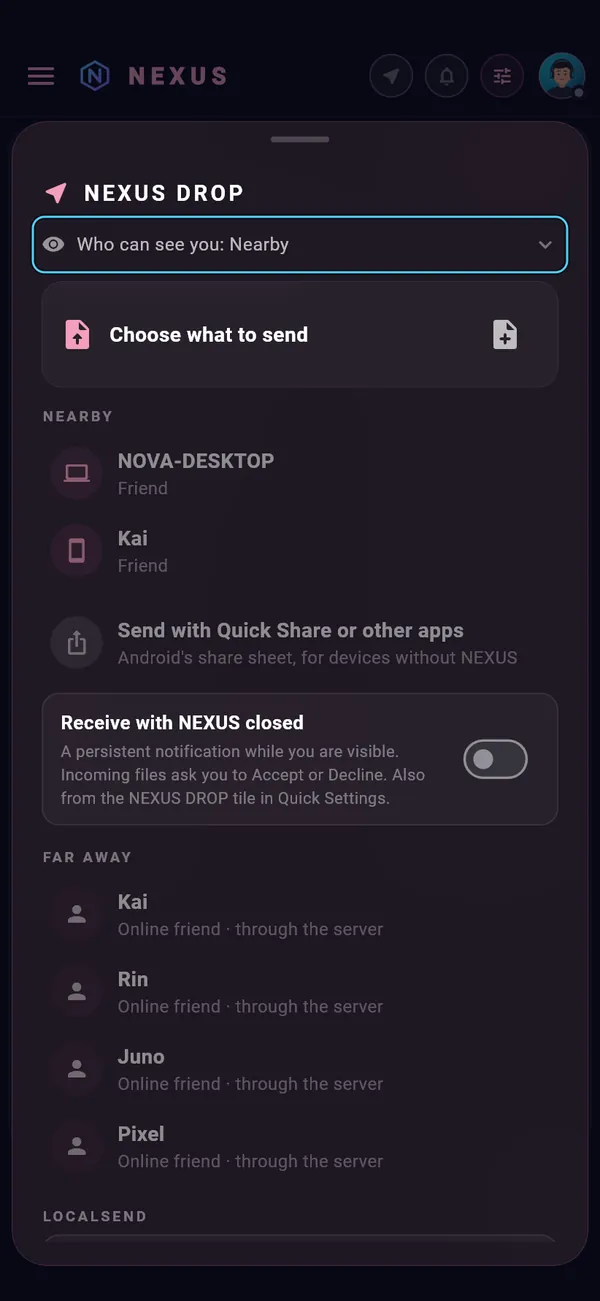
Send files with NEXUS DROP
Where to find it
The NEXUS DROP button in the top bar (phone) or in the toolbar (PC)
How to use it
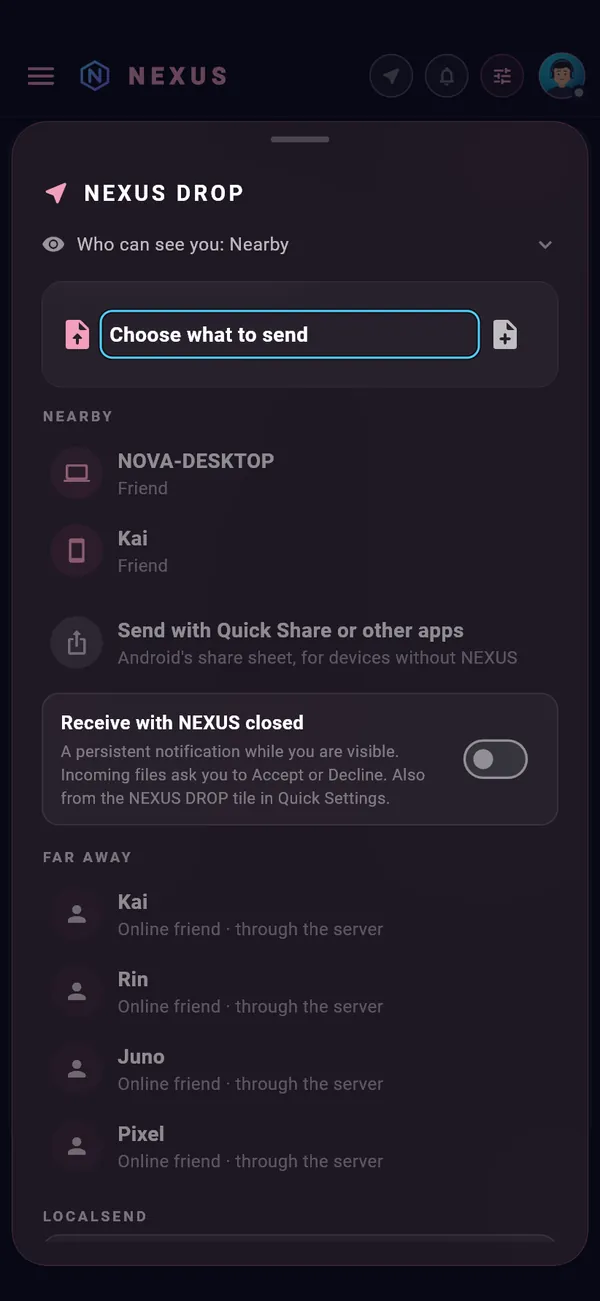
Open NEXUS DROP and choose what to send (files, photos or a folder).
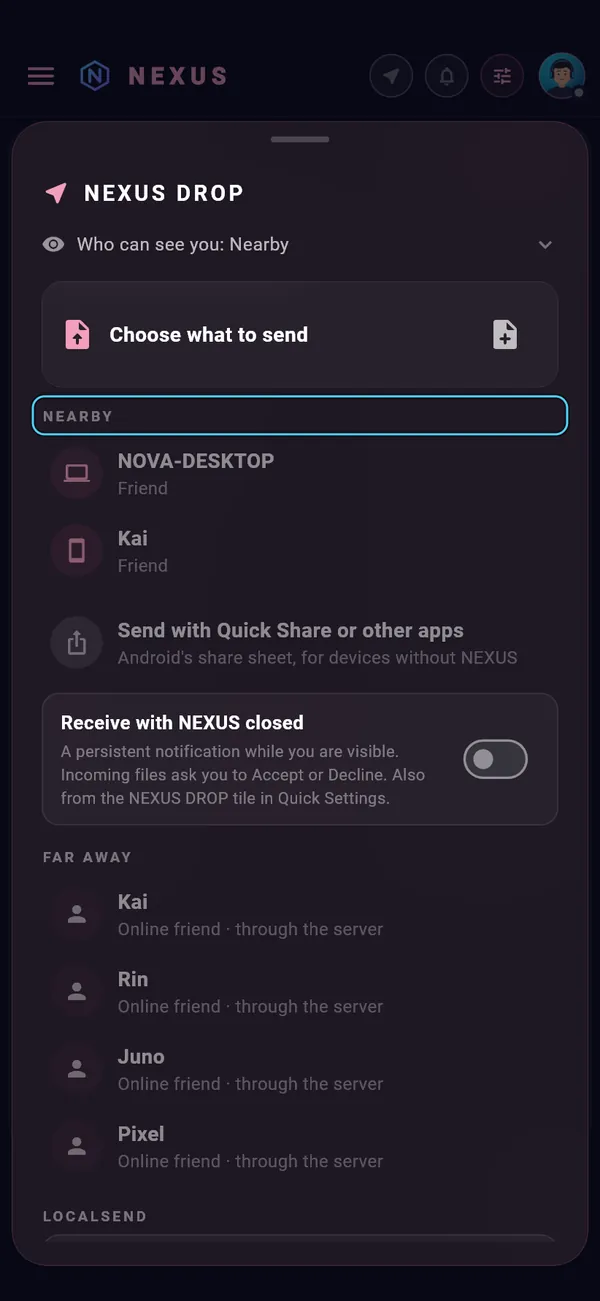
Nearby: devices with NEXUS open on your network or your NexusBridge network. On Android it also finds devices in the room by Bluetooth and Wi-Fi Direct.
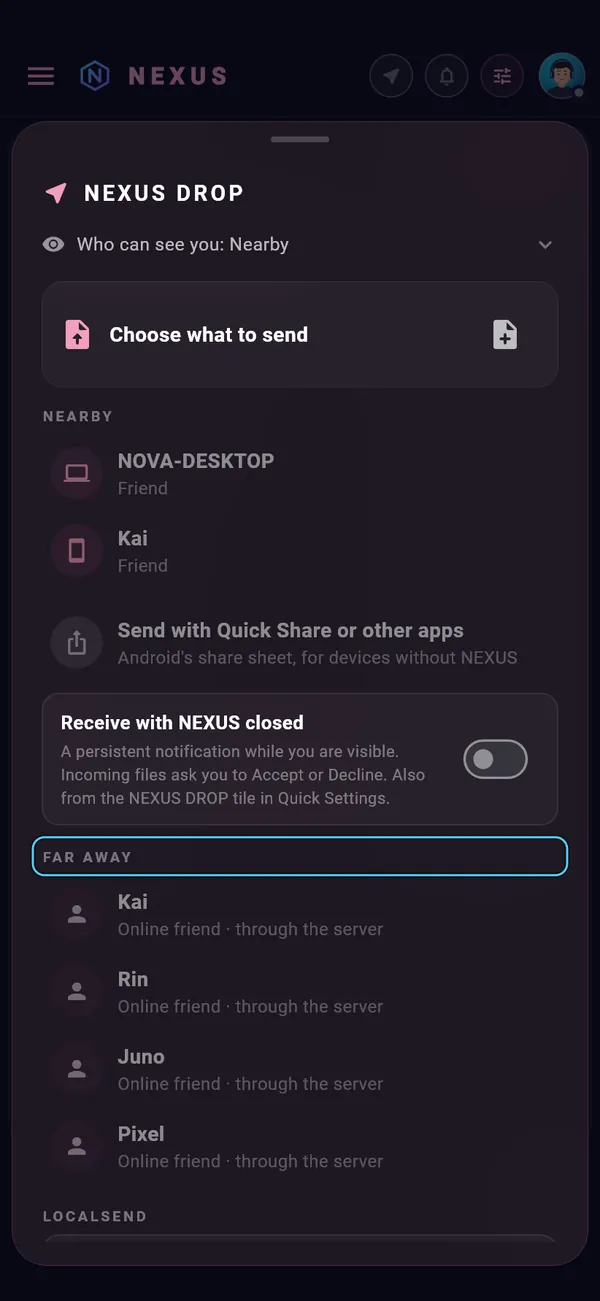
Far away: online friends over the internet, end-to-end encrypted. It needs an account and a membership.
Set Who can see you: No one, only friends and your devices, or anyone nearby.
Received files go to Downloads › NEXUS Drop.
For devices without NEXUS, the same sheet opens the Android or Windows share sheet.
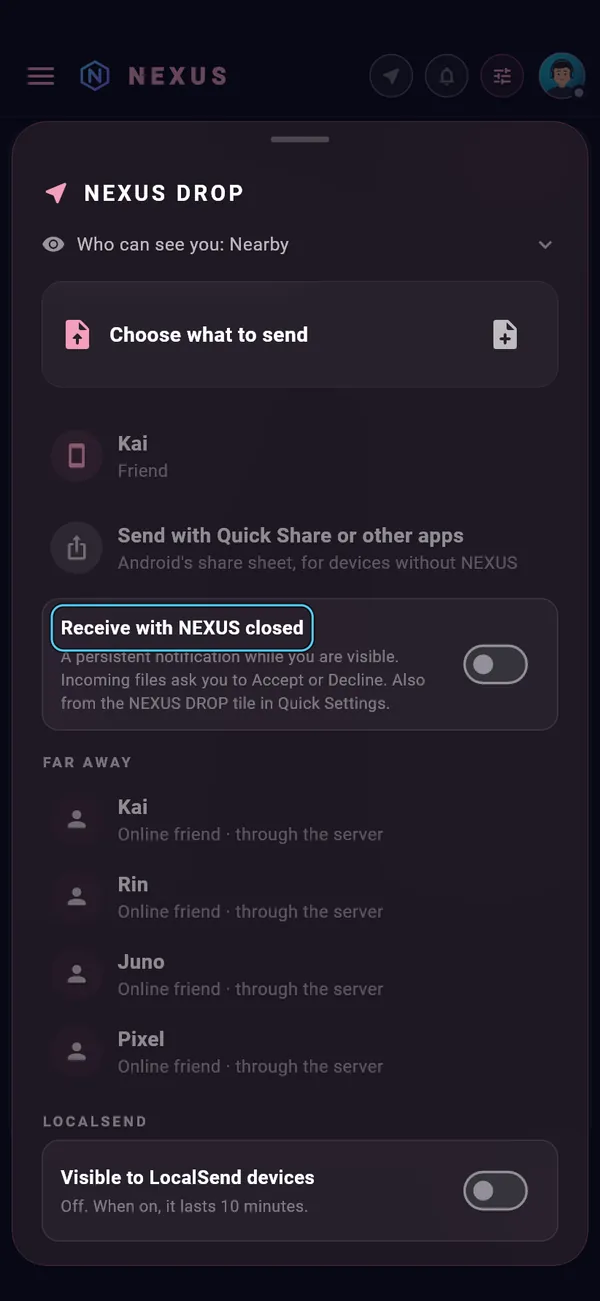
Receive files and messages with NEXUS closed
Where to find it
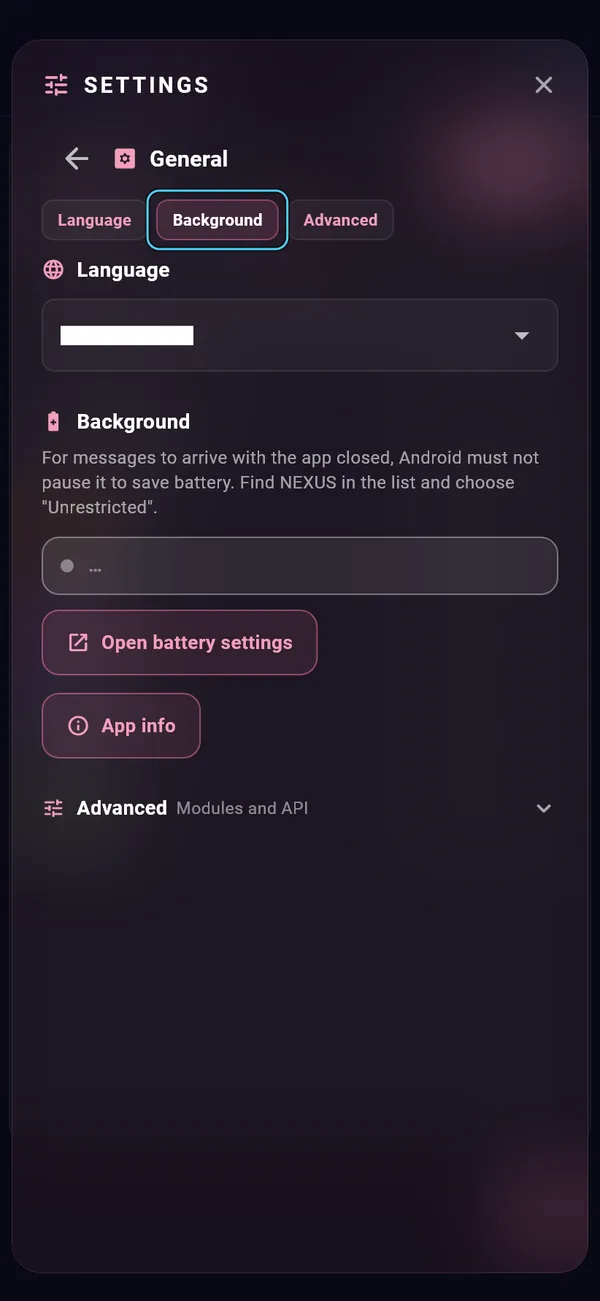
Android: NEXUS DROP › Receive with NEXUS closed, and Settings › General › Background
How to use it
In NEXUS DROP, turn on Receive with NEXUS closed. A persistent notification stays while you are visible.
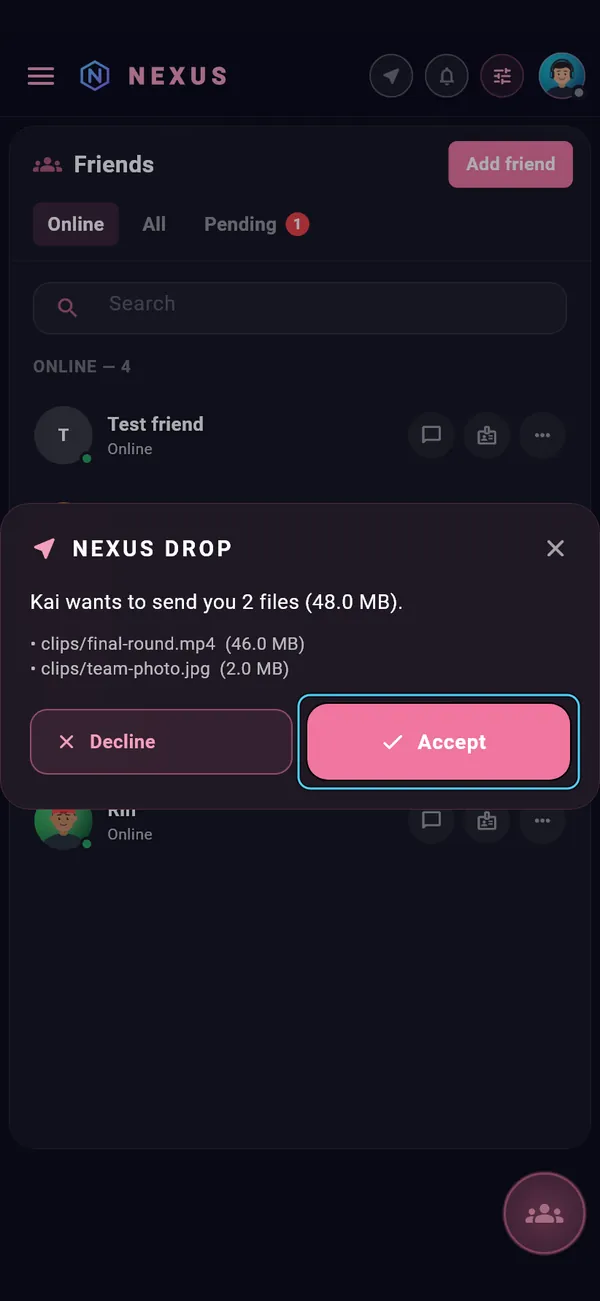
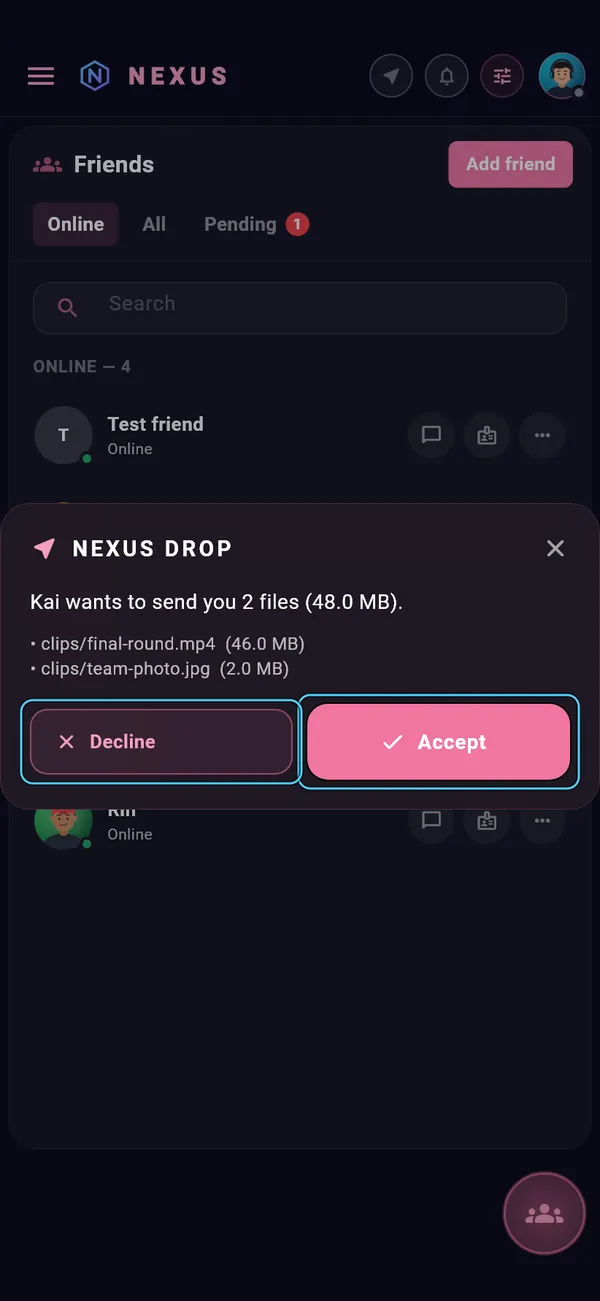
Incoming files ask you to Accept or Decline. You can also switch it from the NEXUS DROP tile in Android's Quick Settings.
For messages, in Settings › General set Background to Unrestricted, so Android doesn't stop NEXUS to save battery.
ON YOUR PC
Friends, servers, streams and modules.
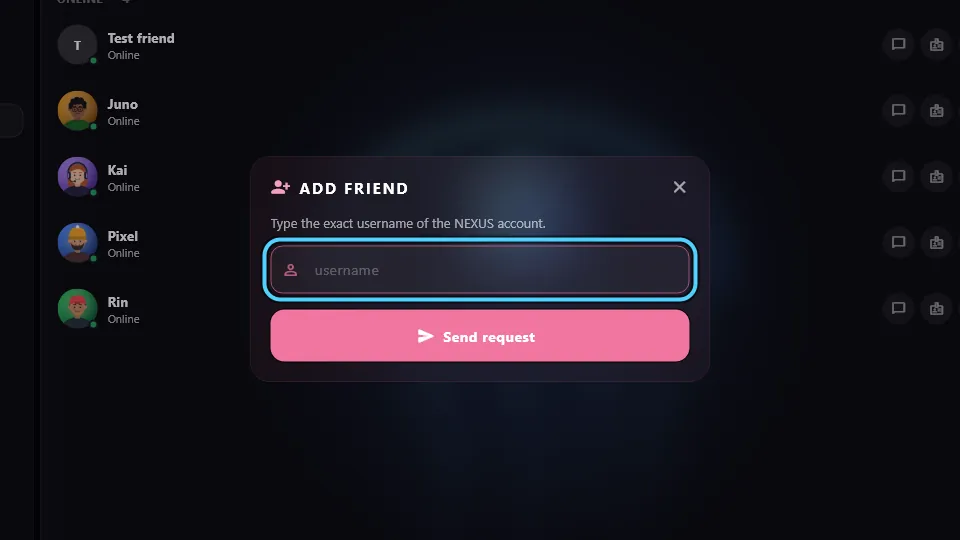
Add a friend
Where to find it
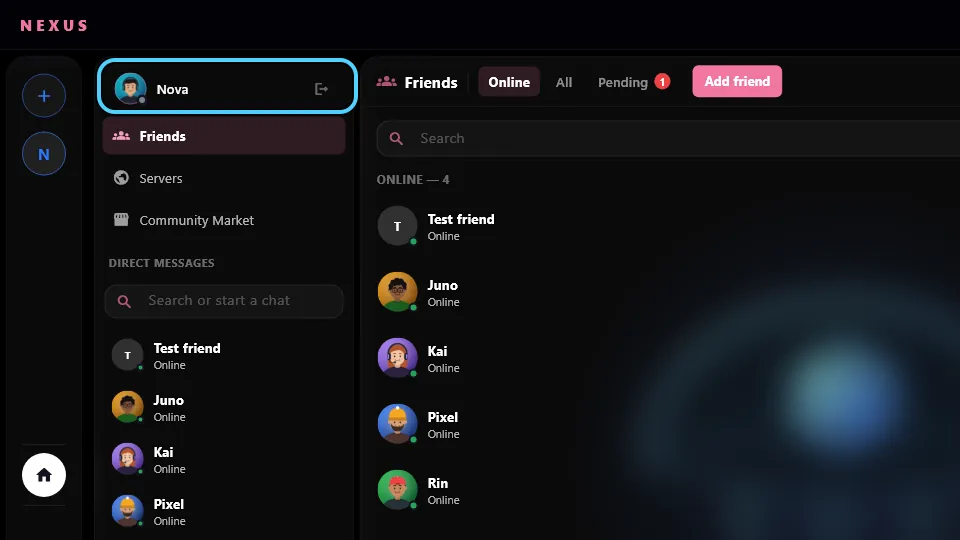
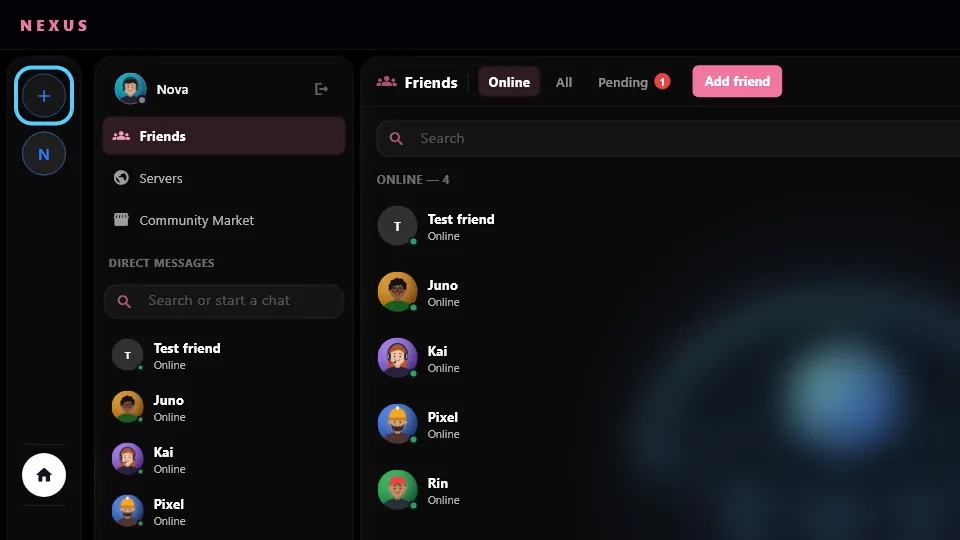
Home › Friends › Add friend
How to use it
Sign in (a free account is enough).
Tap Add friend and type their NEXUS username.
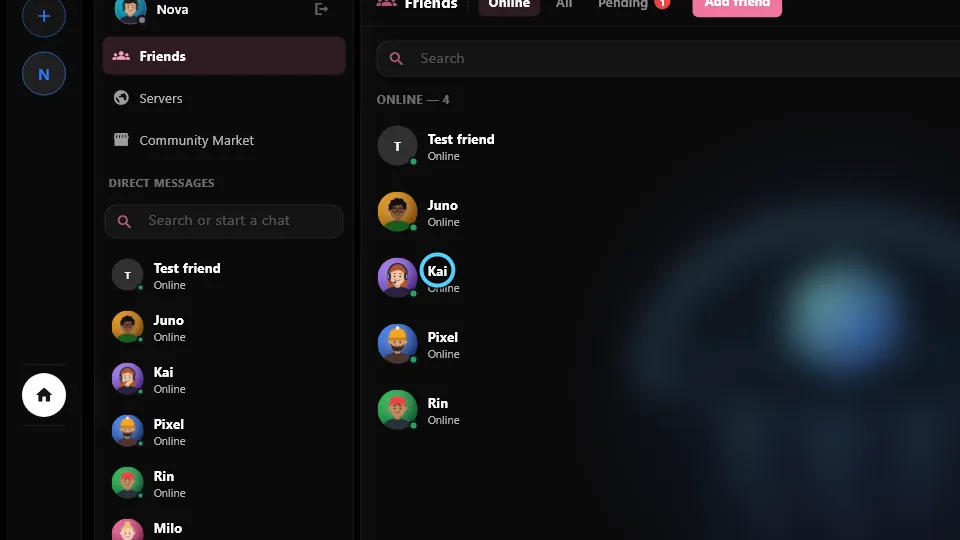
When they accept, they show up in your friends list and you can message them.
Create or join a server
Where to find it
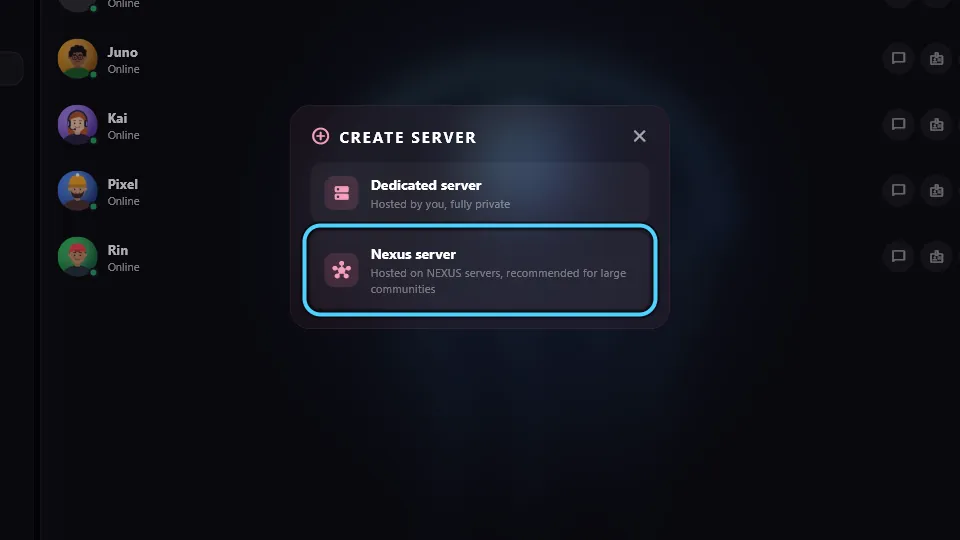
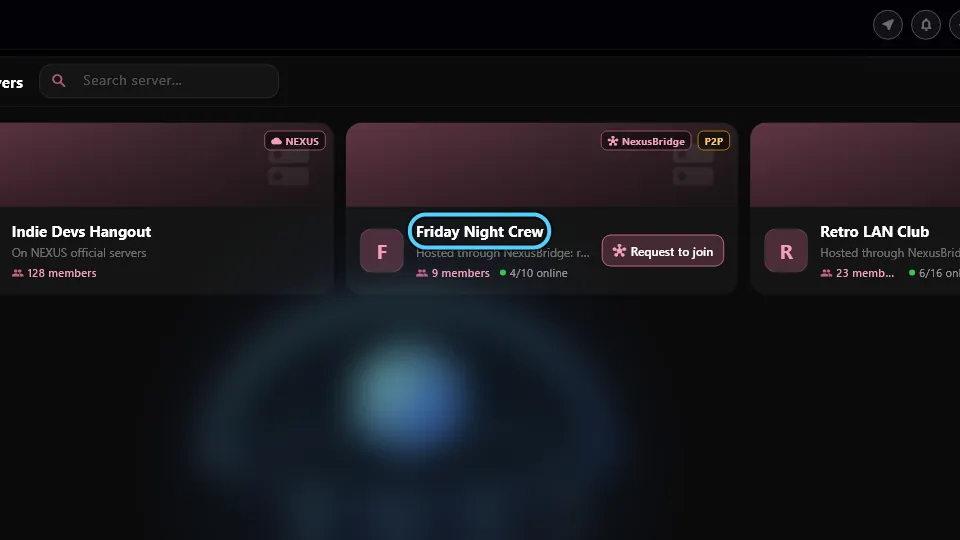
The + at the bottom of the server bar. Public servers: Home › Server browser.
How to use it
Tap +.
Create server › Nexus server: give it a name and tap Create. Share the invite code it shows (needs an account).
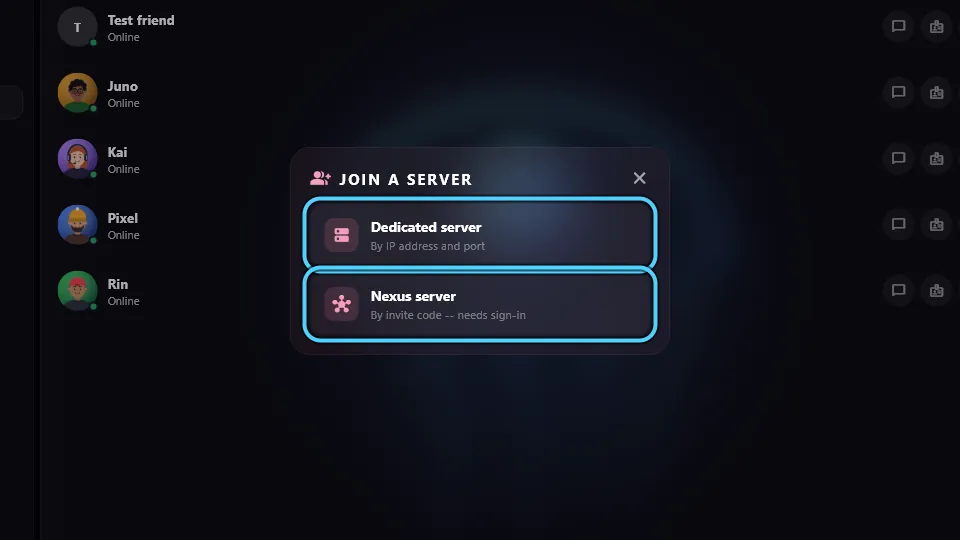
Join a server: paste an invite code, or pick Dedicated server and type the IP or domain and port a friend gave you (no account needed).
Or open the Server browser and tap a public server to see what it's about and join.
Host your own dedicated server
Where to find it
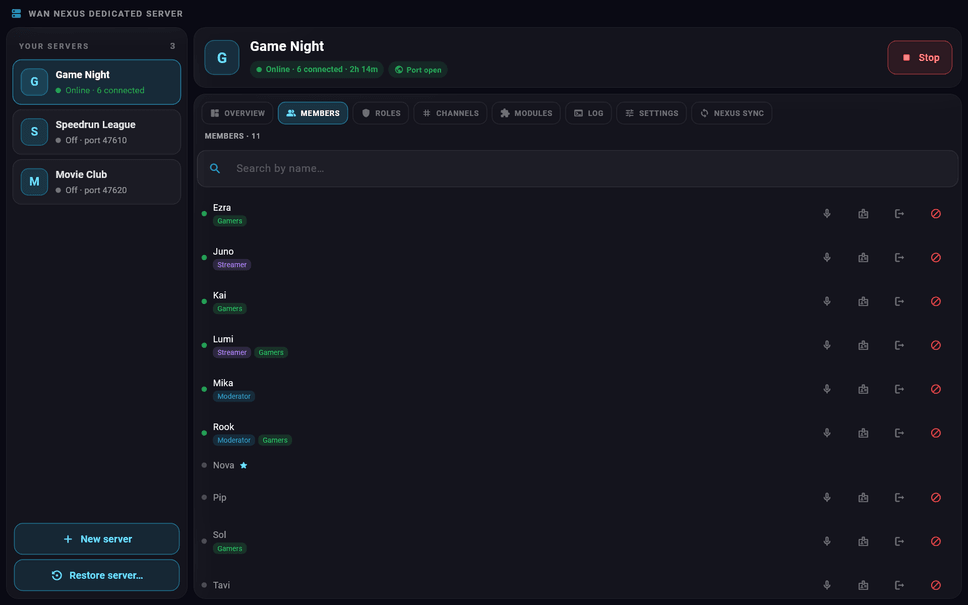
+ › Create server › Dedicated server opens the NEXUS Dedicated Server panel on this PC
How to use it
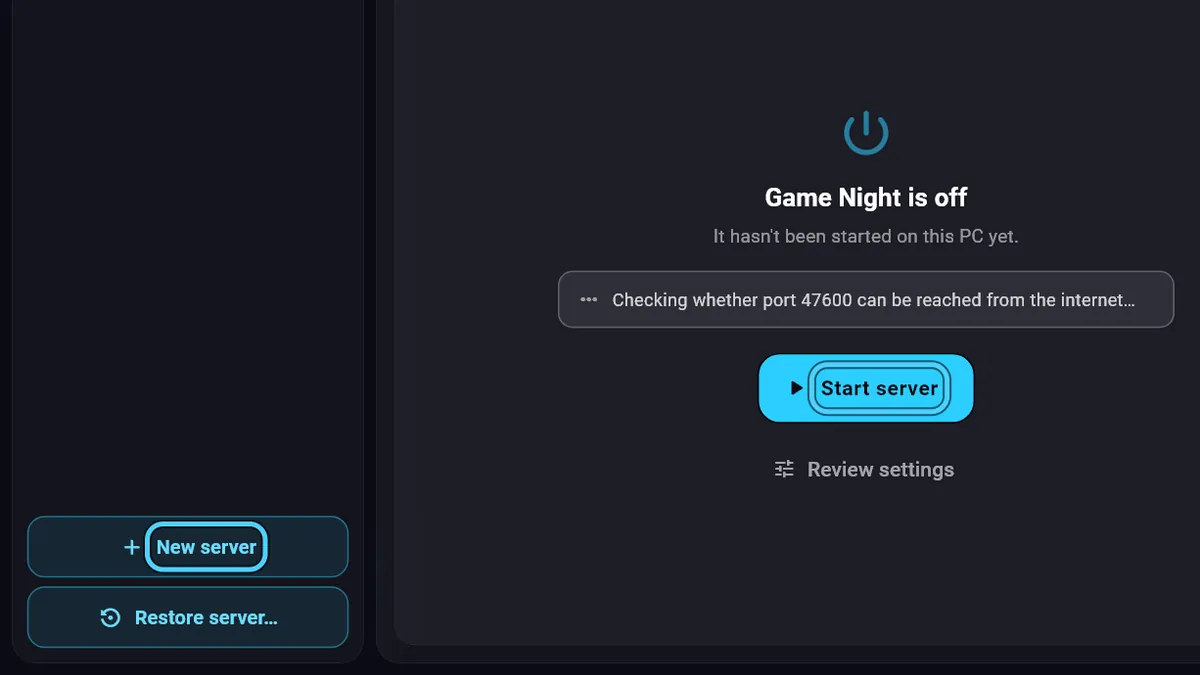
In the panel, tap New server, then Start server. It's all yours and needs no account.
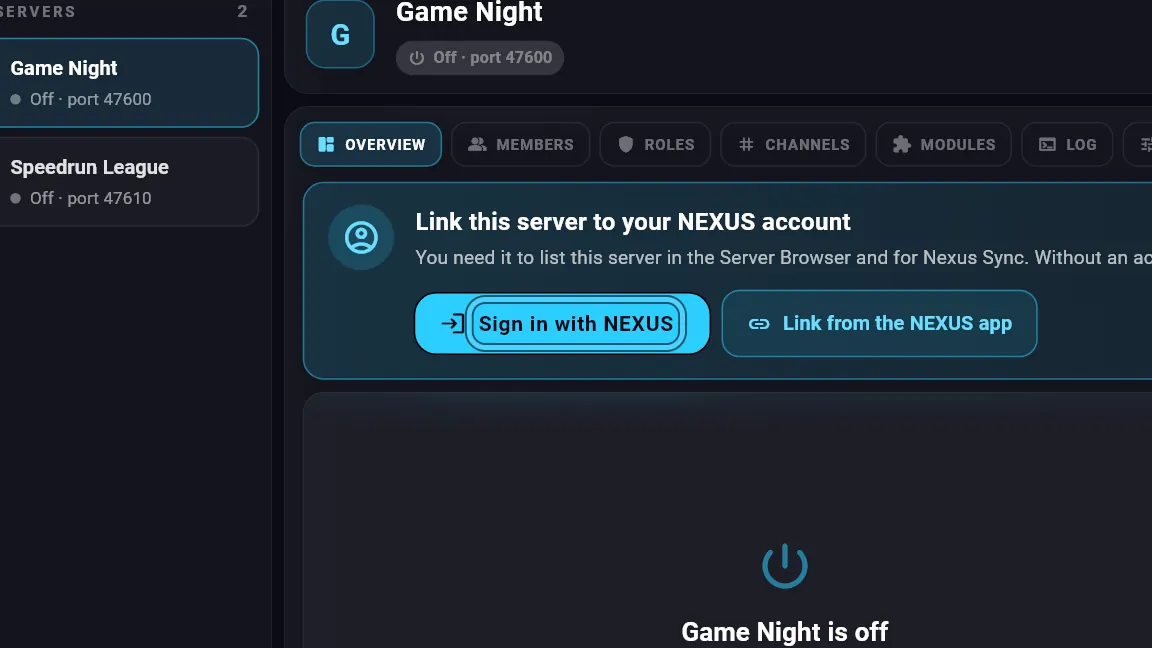
In Overview, tap Sign in with NEXUS to link the server to your account as its owner.
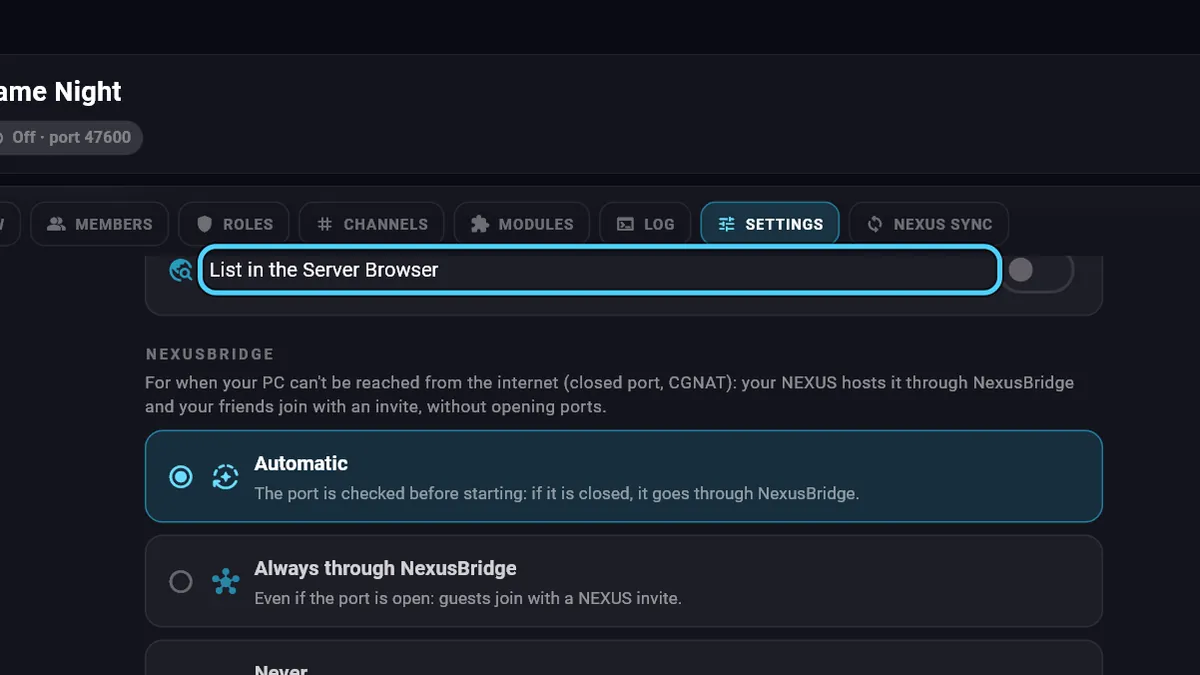
In Settings, turn on List in the Server Browser so anyone can find it.
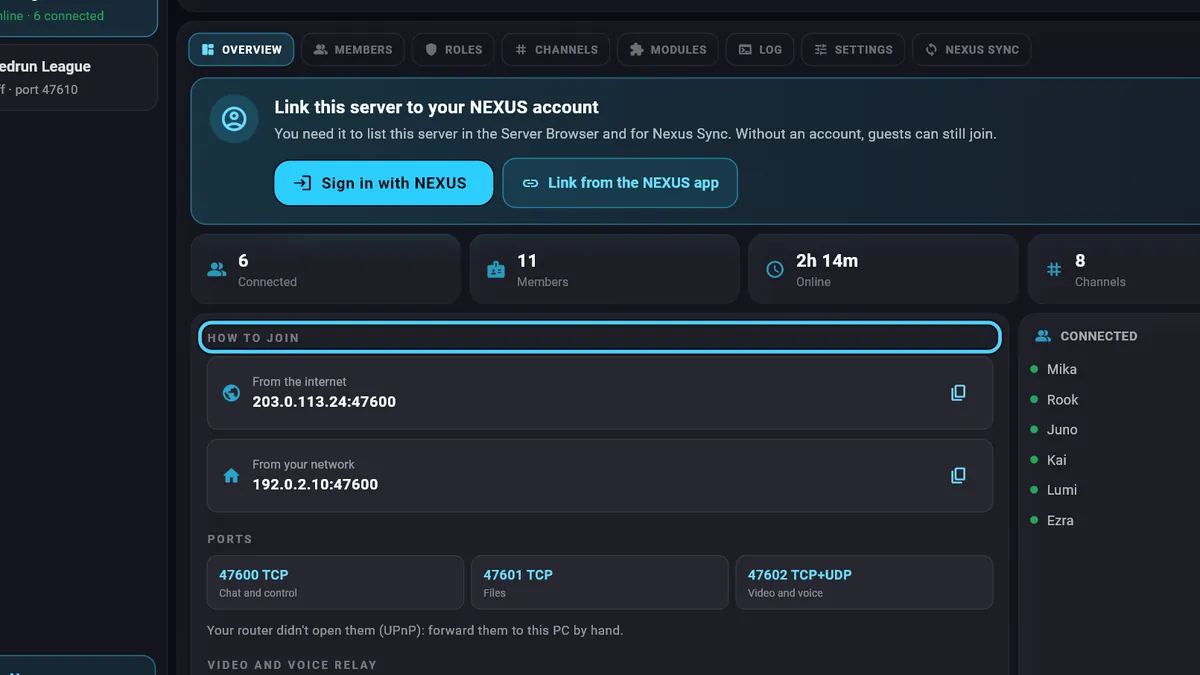
For friends outside your home: a public IP with the port forwarded, or NexusBridge, which needs no open ports.
Invite friends through NexusBridge
Where to find it
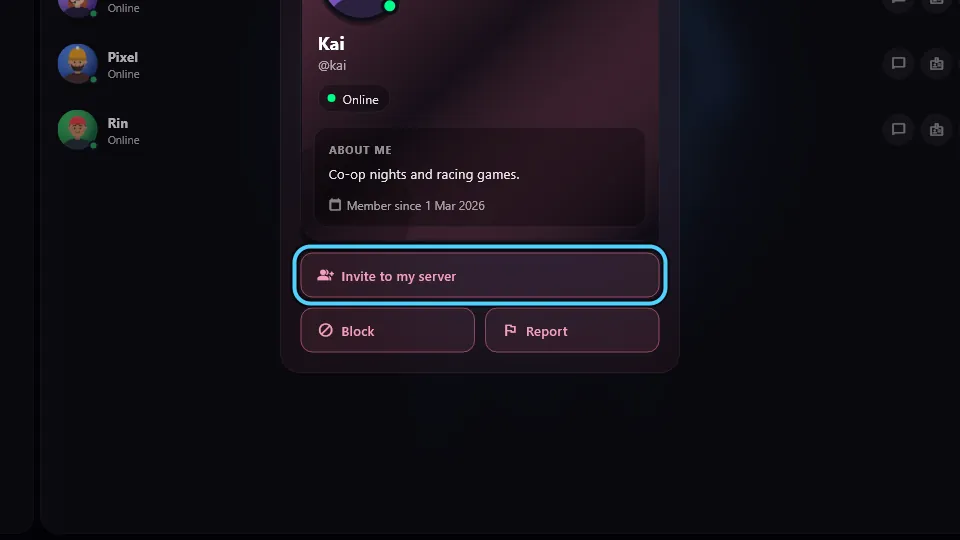
A friend's profile › Invite to my server
How to use it
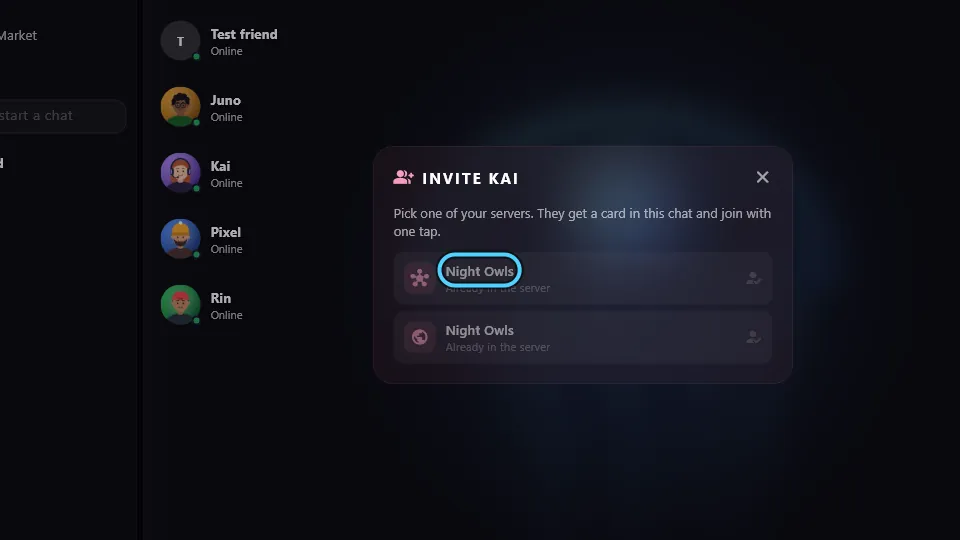
Open your friend's profile and tap Invite to my server.
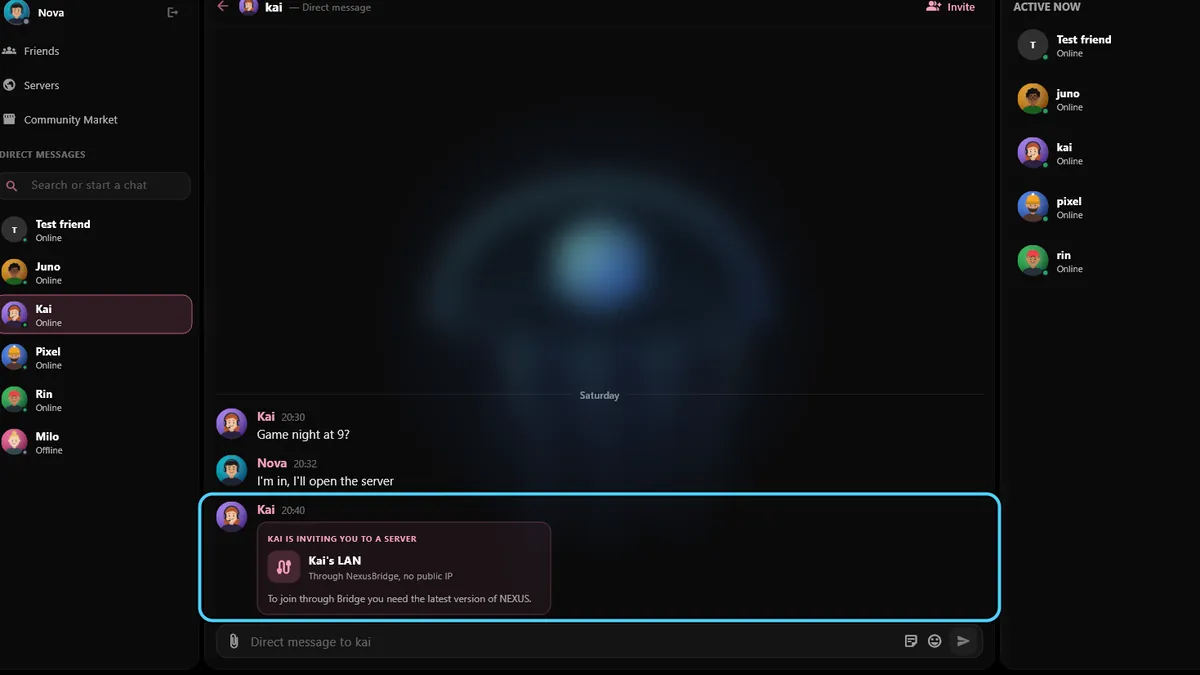
Pick the server. Without a public IP it goes Through NexusBridge, no public IP.
Your friend joins with one tap. A free account includes a few guests; memberships add more (see Membership).
Start a stream and pick the codec
Where to find it
In a voice channel: Share screen in the voice panel
How to use it
Join a voice channel and tap Share screen.
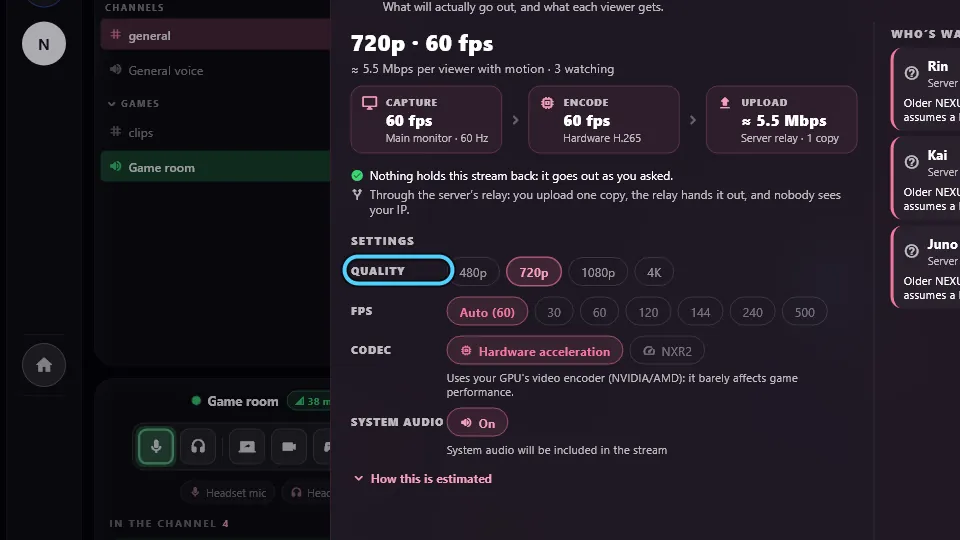
Pick a screen or a window (All, Screens, Windows) and the Quality.
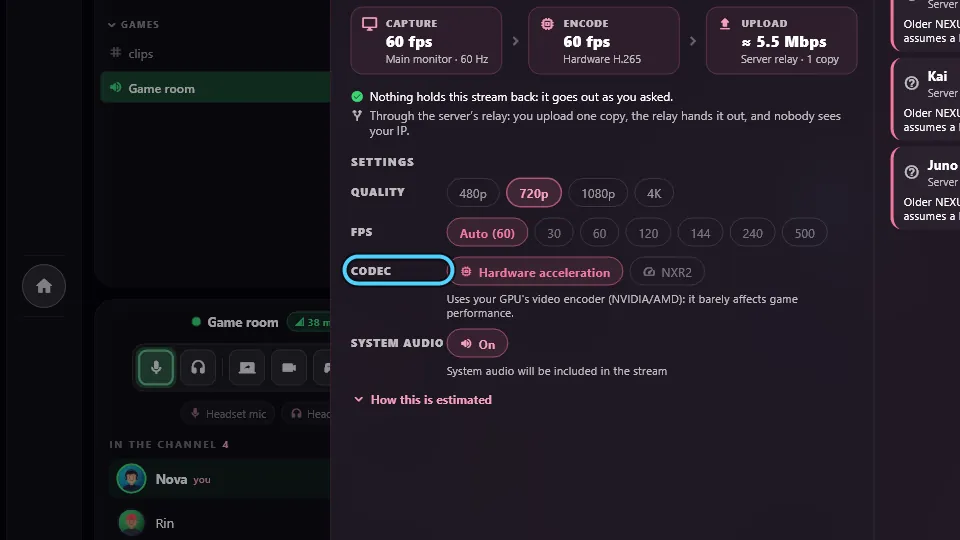
Under Codec: NXR2 is NEXUS's own codec and works for everyone; Hardware acceleration (H.265) uses your GPU's encoder; AV1 appears when your GPU can encode it, and viewers need a GPU that decodes AV1. On NEXUS official servers streams always use NXR2.
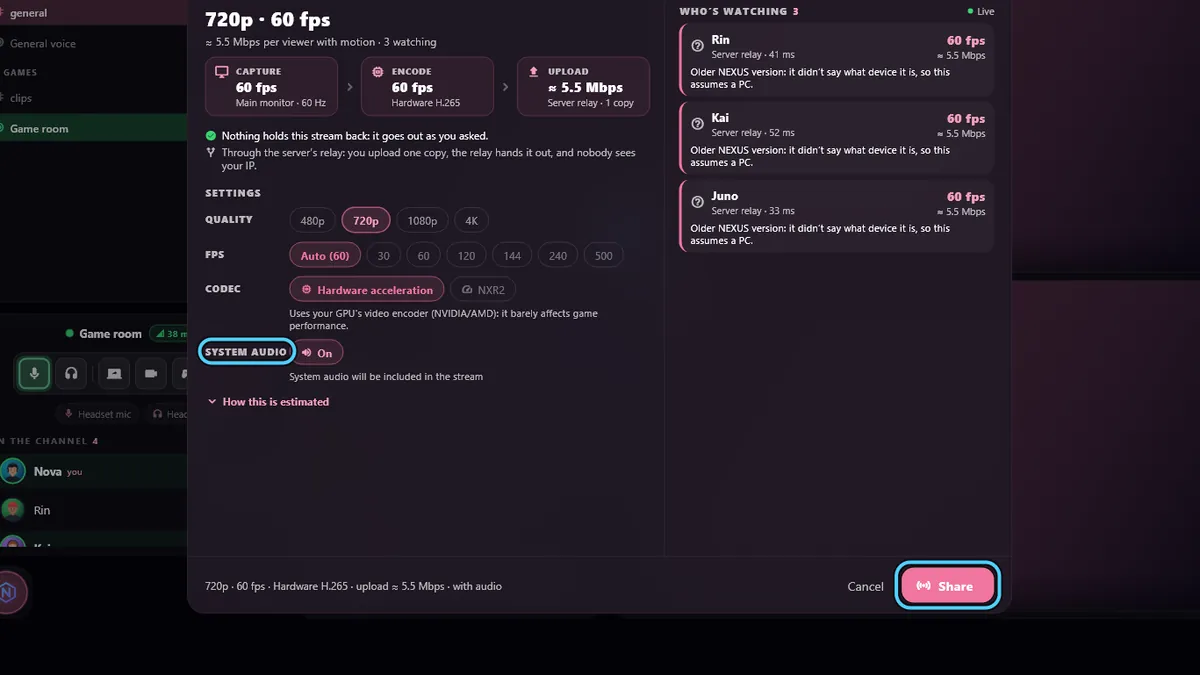
Turn on System audio if you want sound, then tap Share.
Watch streams in the Cine module
Where to find it
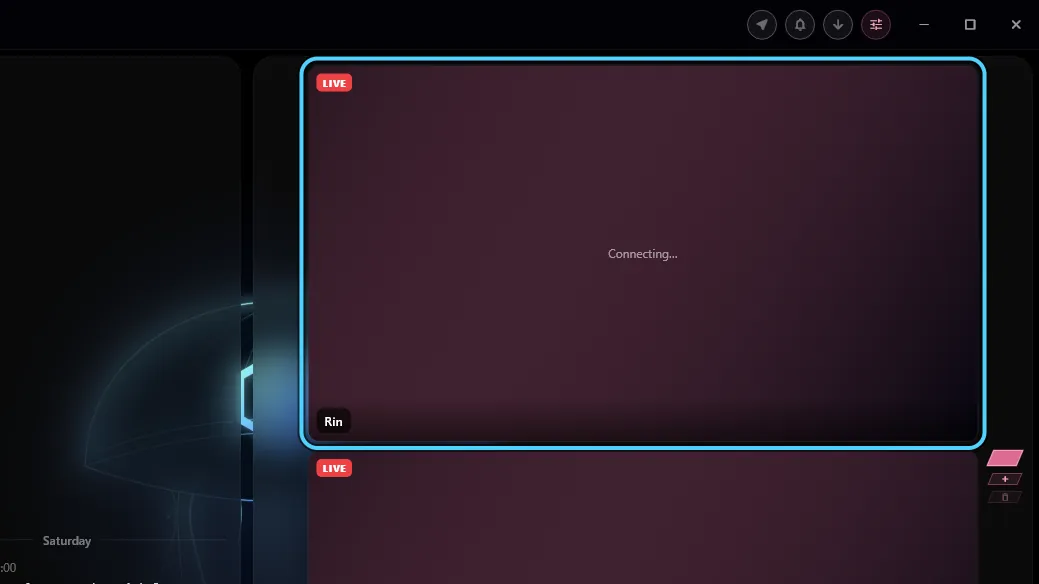
In a server, the streams module (Cine). Each stream is a tile with its own toolbar.
How to use it
When someone in your voice channel shares their screen, it appears as a tile.
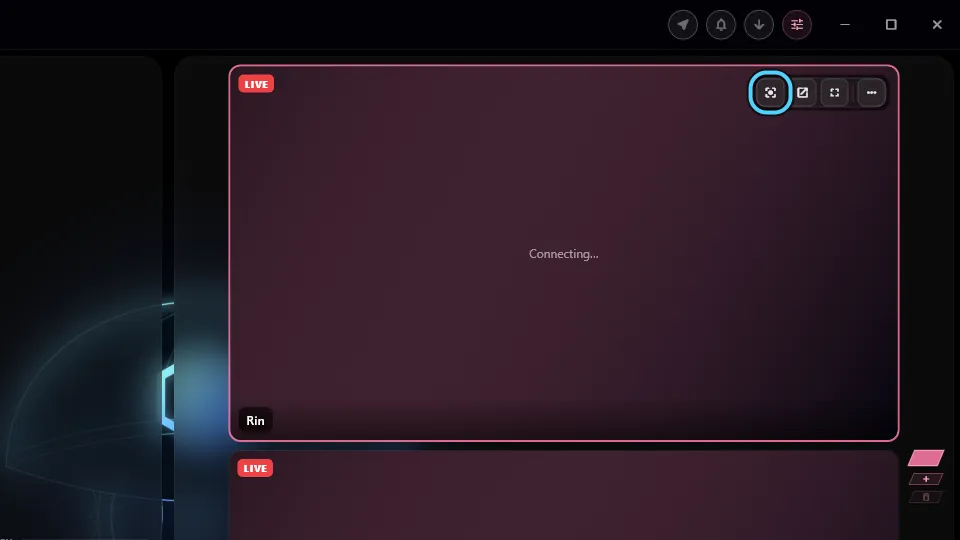
Focus makes it fill the space; Exit focus or Esc brings the grid back.
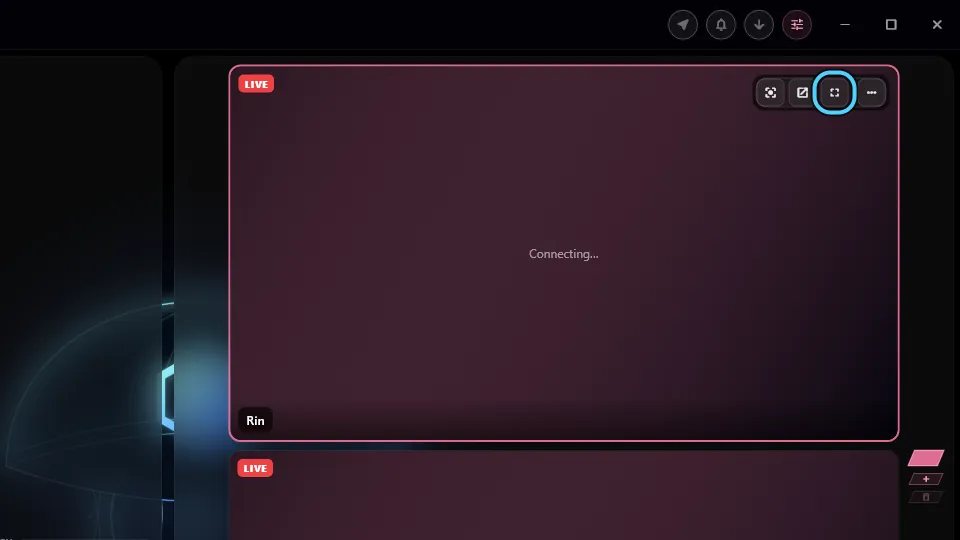
Fullscreen takes the whole monitor.
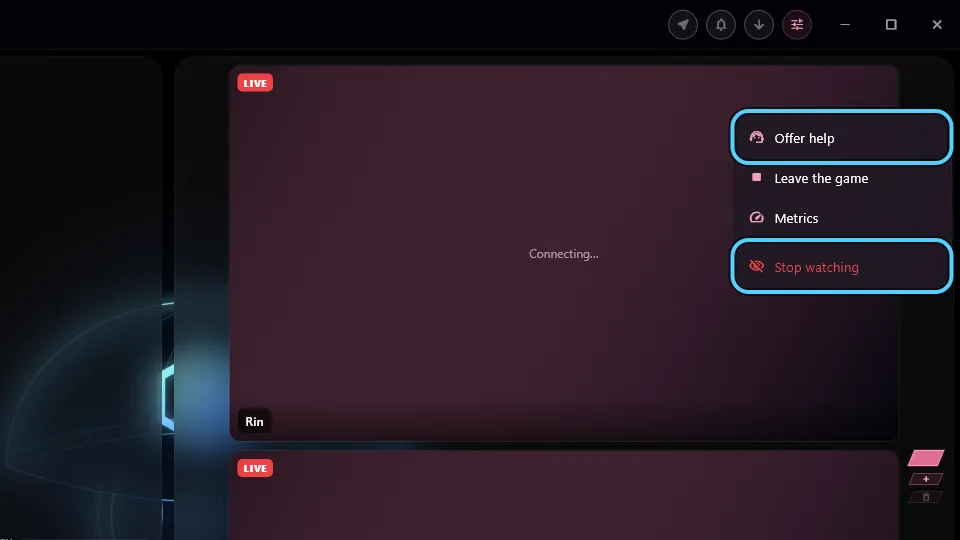
The tile's More menu: Own block moves it to its own block (Back to Streams returns it), Stop watching, and Offer help to ask for the streamer's mouse and keyboard.
Play together with controllers
Where to find it
Host: Play together in the voice panel. Viewers: the stream tile's More › Play, or Join in the game session bar.
How to use it
The host taps Play together. NEXUS streams and opens a game session. The first time, it installs the controller driver (ViGEmBus) and Windows asks for permission.
Viewers tap More › Play or Join. Each one takes a seat as Player N with their Xbox or PlayStation controller, or with the phone.
Each player picks Xbox or PlayStation and their own Vibration.
The host taps Close the game session to end it.
No stream needed for people in the same room: Settings › Controls and games › Controllers on this PC opens a controller session on your network.
Edit the grid
Where to find it
The Nexus button › Edit mode. Free for everyone.
How to use it
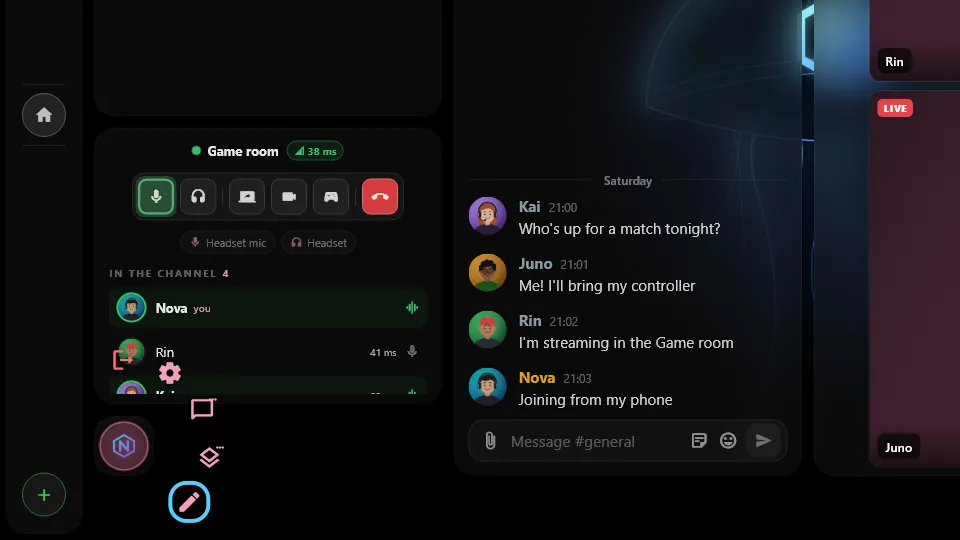
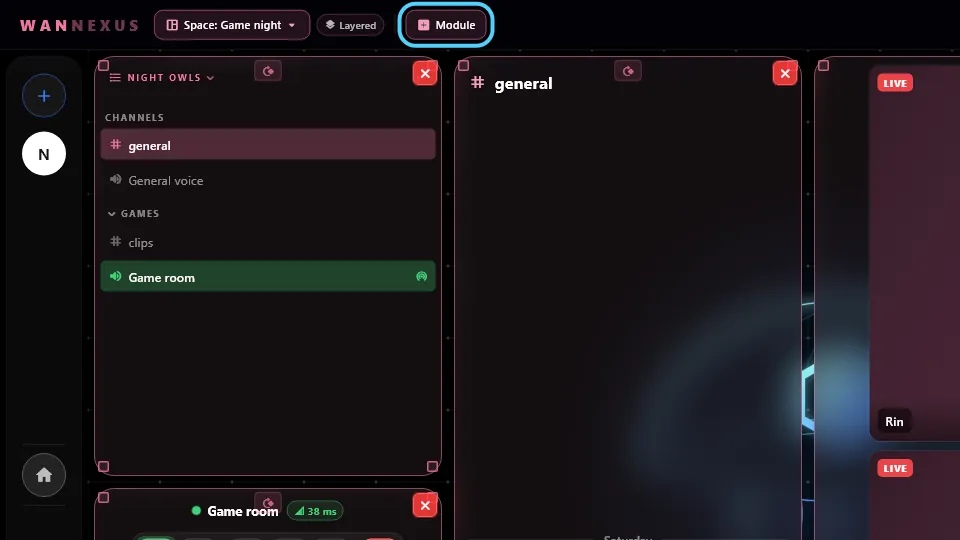
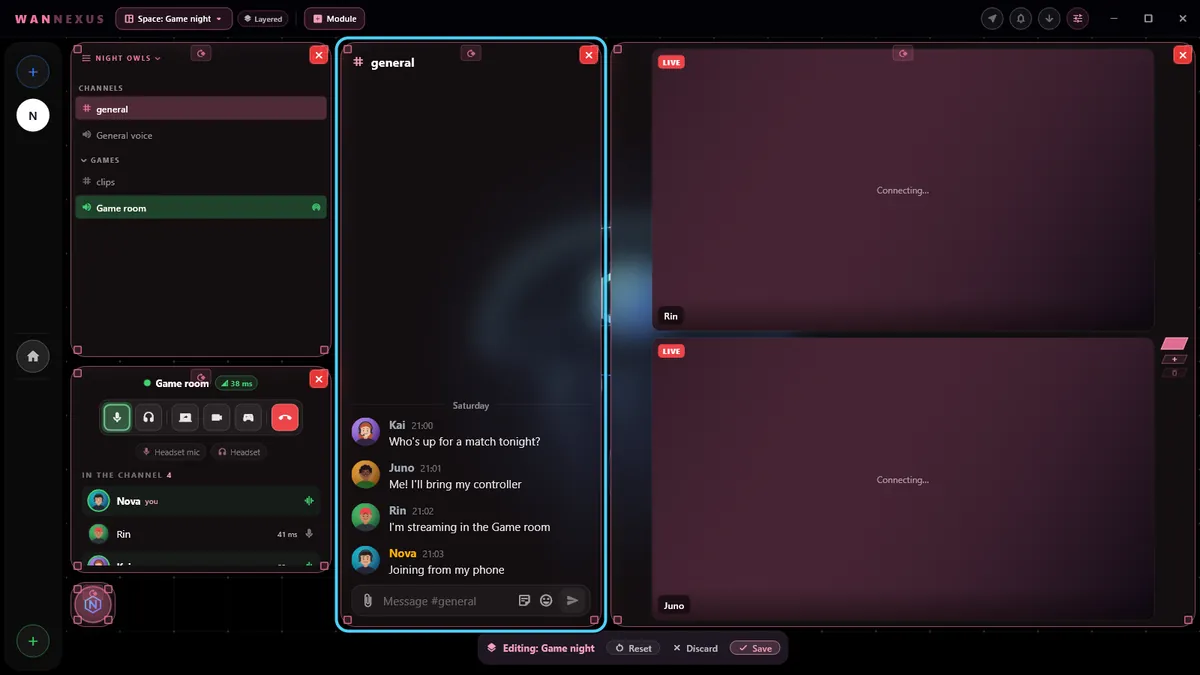
Open the Nexus button and choose Edit mode.
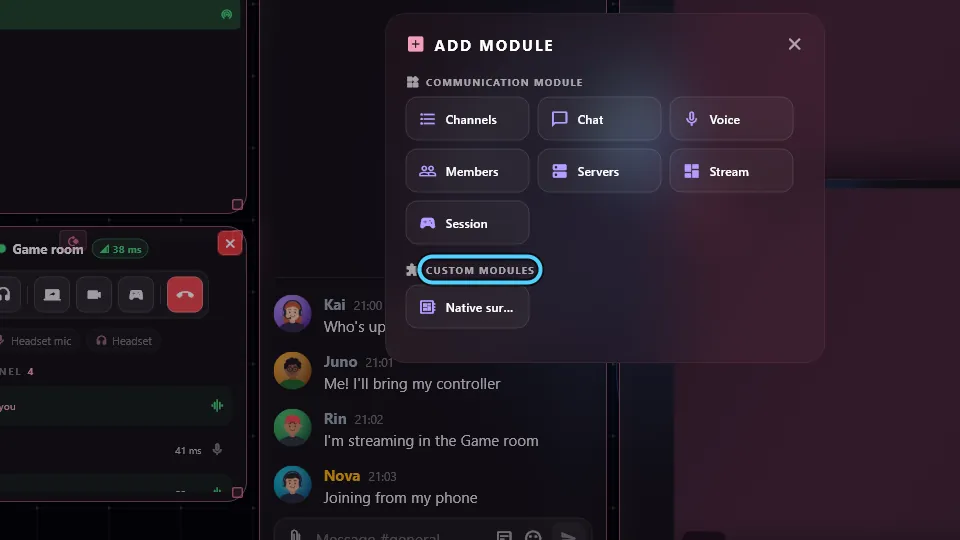
Tap Module to add one: chat, voice, members, stream or a module of this server.
Drag a module to move it, pull a corner to resize it, and use the X to remove it.
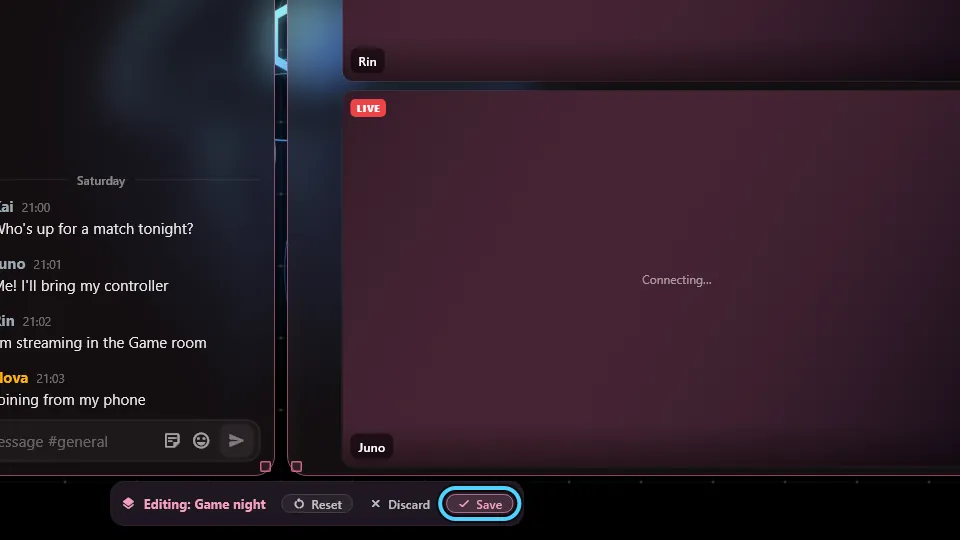
Finish with Save, Esc, a double-click on an empty spot or the Nexus button.
Get modules from the Market
Where to find it
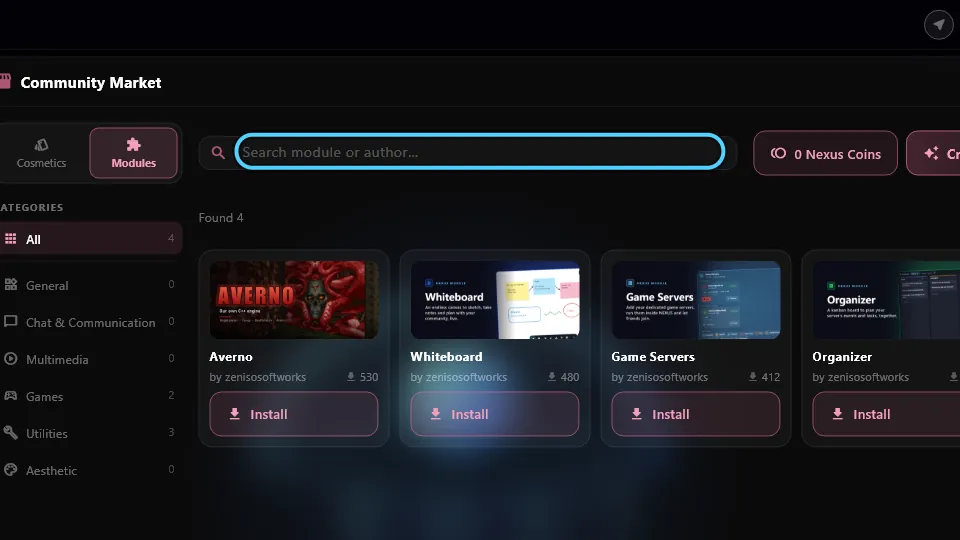
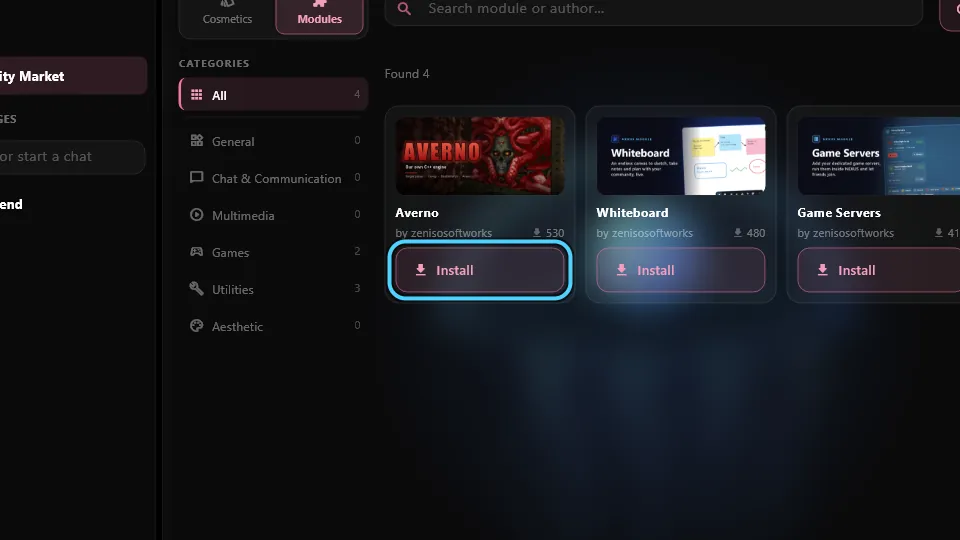
Home › Community Market
How to use it
Search by name or author, or filter by category.
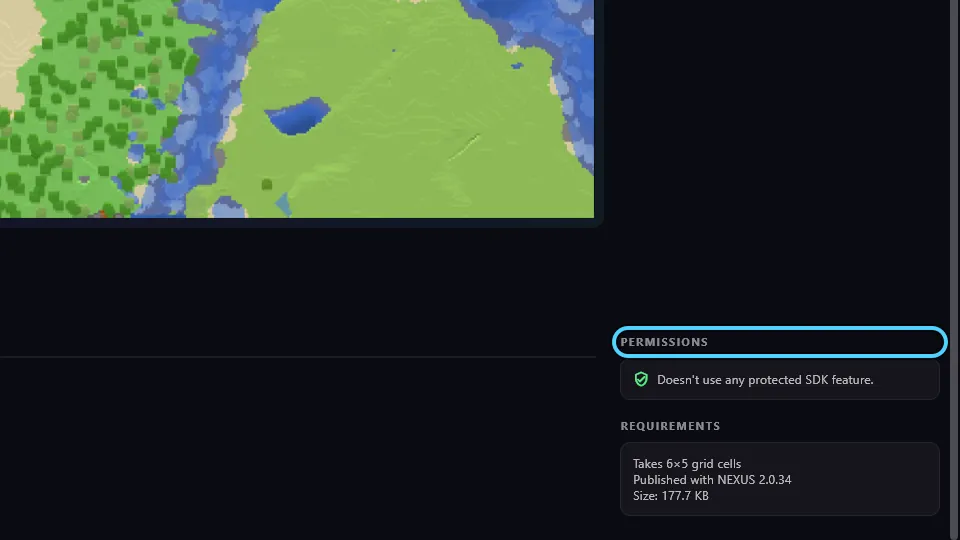
Open a module to see its screenshots, permissions and price, then tap Install.
Choose its permissions. A module only does what you allow, and you can change it later.
To use it: in your server, Edit mode › Module › Custom Modules. On the phone, from the server's More tab.
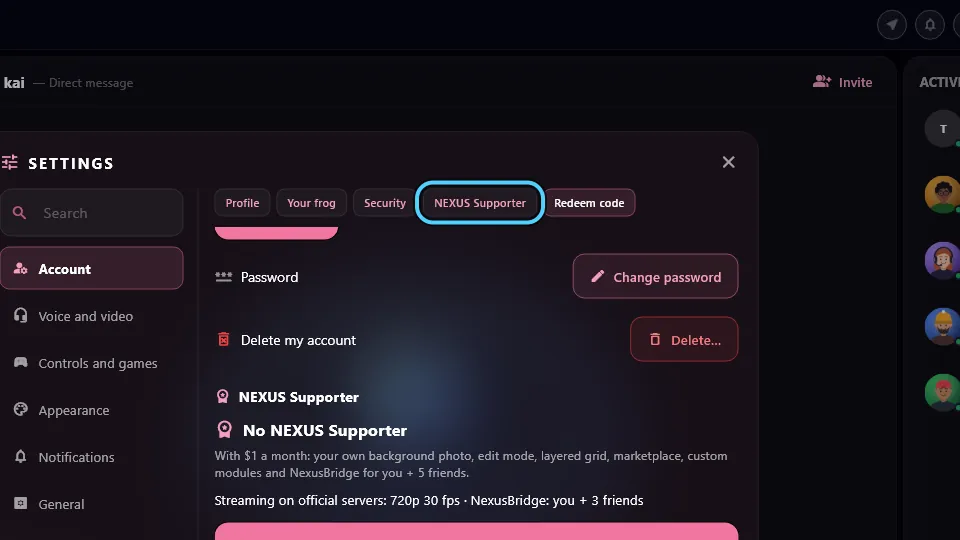
Official NEXUS modules are free. Modules from other creators need NEXUS Supporter.
Membership tiers
Where to find it
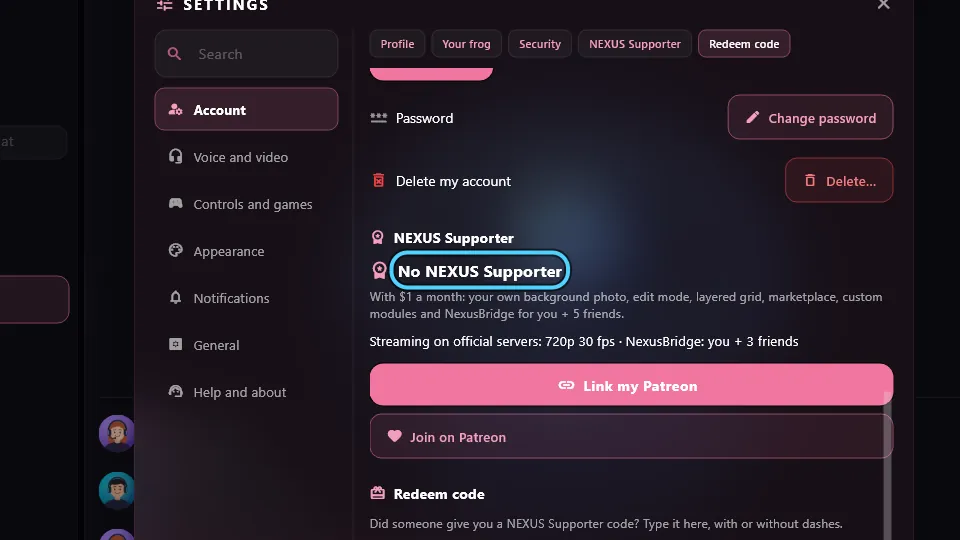
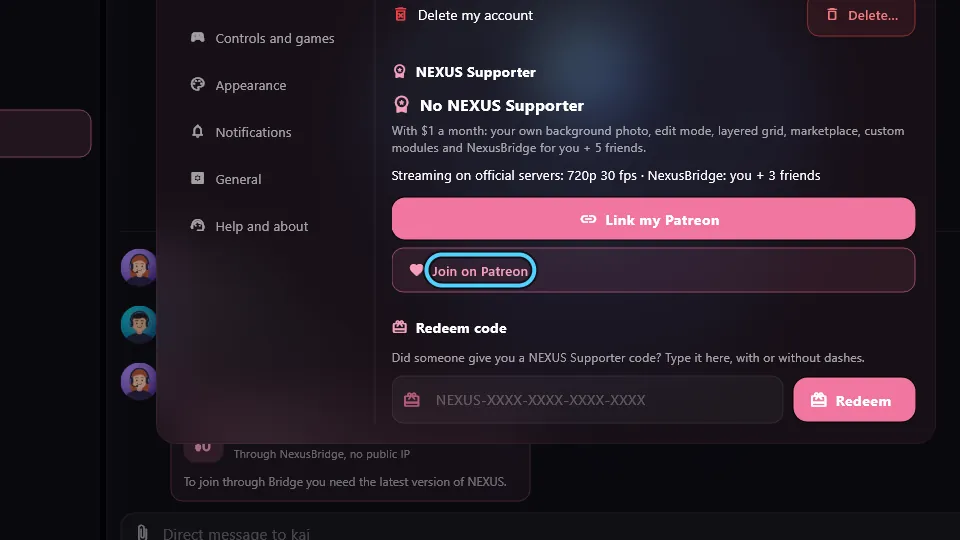
Settings › Account › NEXUS Supporter
How to use it
Open NEXUS Supporter to see what each tier includes.
Tiers are cumulative: Supporter, Plus and Elite each include everything from the tiers below.
Tap Join on Patreon to start. Prices and perks are on the NEXUS page.